Overview
The Session Logger and Planner (SLAP) application for Social Workers is a desktop client used to help social workers manager their day. By creating an easy to use command-line interface with graphical elements, social workers can quickly manage their contacts (e.g. beneficiaries) as well as their schedule (i.e. their calendar) from one central location efficiently via the command line. In addition to a fully-featured address book and calendar through the use of command line input, the client also allows for social workers to take session notes and attach them to their beneficiaries, as well as generate an optimal route of their daily schedule to help organize their day.
On top of these features, a robust login system was implemented such that multiple users can securely switch between different accounts and have distinct address books, session reports, and calendars isolated from each other. Thus, not only does this allow for increased security, but it also allows for multiple users to use the same application on the same system, which has the added benefit of saving money as several people can share the same application on the same system without affecting the data of another person.
The social worker is to interact with the application primarily through the command line. The GUI was created using JavaFX.
Summary of contributions
-
Major enhancement: added Google Calendar integration using OAuth 2.0
-
Added commands that require OAuth2.0 to function properly: **
-
calendar-launch / switch calendar
calendar-delete [args..]
calendar-list
reauthenticate
show-schedule [args..]-
What it does: allows the user interact directly with their Google Calendar via the command line. Users can view, add, and delete calendar events straight from the CLI, as well as view their calendar as a GUI by signing in to the included WebView built into the application.
-
Justification: This feature improves the product significantly because not only does it enable social workers to view their calendar straight within the application, but it also allows them to add/delete events through the CLI as well. This can potentially greatly increase their productivity as it allows them to view all of their important day-to-day information in one consolidated application and perform all major functions without leaving the application.
-
Highlights: This feature powers the underlying workings of several commands, views, and UIs within the application.
-
The implementation of this new Manager Class was challenging as it required completely new logic and classes to be created to handle the API and authentication process.
-
The
calendar-listandshow-schedule d/DATEcommands store their most recently retrieved event location such that the same events list retrieved can be interacted with via thecalendar-deleteandnavigatecommands respectively. -
This feature supports multiple users through our custom log in feature. This was challenging to implement as it required a unique data store location that could be generated on the fly as new users were added.
-
Natural language dates are supported when defining start and end times for the events.
-
-
Credits: Google Calendar API for Handling OAuth 2.0 authentication and methods to operate directly on a user’s Google Calendar, Natty for Natural Language Date Parsing
-
Minor enhancement: Backend work on daily-scheduler. Having successfully connected the SLAP application with Google Calendar, I assisted my teammates minor enhancement of the nagiate command by creating the necessary backend logic and command classes for the
show-schedule d/DATEcommand to work. This feature accepts a date in most formats (including natural language), and fetches the list of events that the user has scheduled for said date. Additionally, the command also generates the necessary hooks required for thenagivatecommand to function (i.e. generating a list of events for the particular day). -
Minor enhancement: added an command and menu option to display the current error log to the user. This was implemented in order to allow for users that encounter issues to have a more programmatic way of sending error log details without having to look around their computer to locate the actual error log file. This was an important feature to add as managing multiple contacts and events must be a seamless process, and so in the off chance that an error is encountered, it was essential to provide an easy way to generate the error log on demand to help simplify the troubleshooting process.
-
Code contributed: [Functional code] [Test code | Test code - Reused] {give links to collated code files}
-
Other contributions:
-
-
Project management:
-
Managed releases
v1.2-v1.4(3 releases), co-managed releasev1.5rc and v1.5on GitHub -
Set up the GitHub pages website
-
-
Enhancements to existing features:
-
Updated the menu to include option to open standalone calendar instance as well as view the error log (Pull requests #1, #21)
-
Set up issue labels, created milestones each week, wrote detailed issues every week, and ensured that housekeeping was performed weekly (i.e. closing issues and milestones, creating releases, etc.) in accordance to their deadlines
-
Extended @kaisertanqr’s login status bar to display the logged in user in the status bar.
-
-
Documentation:
-
Community:
-
Tools:
-
Integrated a third party library Natty to the project for natural langauge date parsing (#58)
-
Integrated a Google OAuth 2.0 and Google Calendar APIs to the project for to enable seamless command line interaction with Google Calendar (#46)
-
Set up TravisCI and Coveralls for the team
-
{you can add/remove categories in the list above}
Contributions to the User Guide
Given below are sections I contributed to the User Guide. They showcase my ability to write documentation targeting end-users. |
Calendar Quick Start
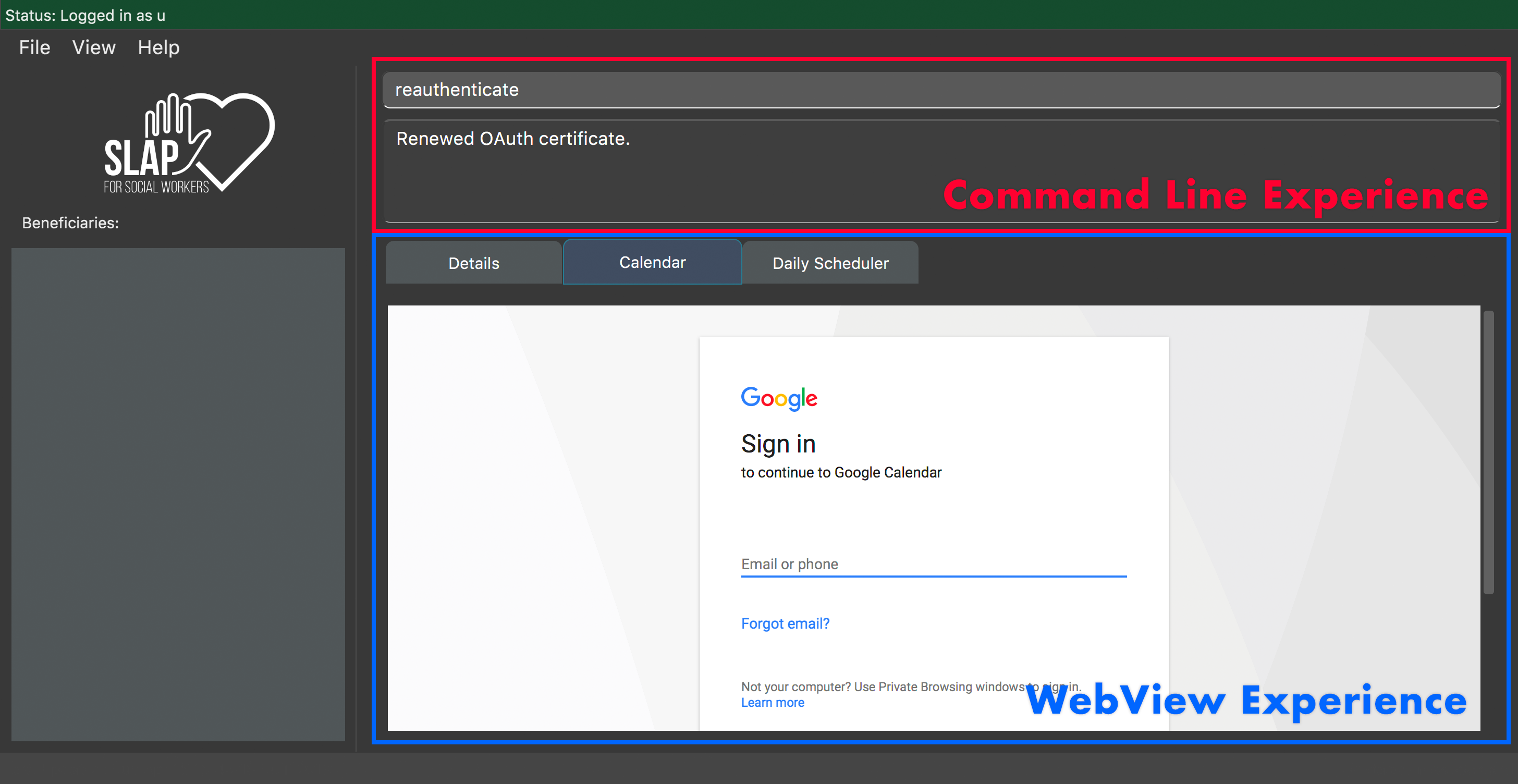
This section is meant to be a brief explanation on the various Google Calendar integrations built into the SLAP app.
-
WebView versus Command Line Experiences
-
WebView Experiences include:
switch calendar,calendar-launch, pressingF8, andView > Open Calendar -
Command Line Experiences (i.e. require an OAuth certificate) include:
calendar-add,calendar-delete,calendar-list,show-schedule, and reauthenticate
-
-
How are these features related?
-
The WebView Experiences and Command Line experiences are not linked by default. That is, you can technically log into one Google account within the WebView experience and authorize SLAP to manage a different account via CLI without any issues programatically. The WebView experiences will work as intended, and the command line experiences will work as well, however they will be operating on seperate Google Calendar accounts.
-
The WebView experience is meant to act as a front-end for the CLI operations.
-
Each of the WebViews share the same cookies / cache. You cannot log into one account in one WebView and another account in a different WebView.
-
-
What is OAuth and why is it required?
-
OAuth is a secure authorization protocol that allows for the authorization of third party applications to access specific subsets of a user’s data from a specific service without exposing their password directly to the service requesting the data. For the SLAP app, OAuth is being used to enable communication directly with Google’s Calendar services to manage a user’s calendar via API calls, provided that they have authorized the application to do so. This is what enables command line interaction with Google Calendar.
-
-
How can I ensure that both my WebView and Command Line experiences are operating on the same calendar?
-
After logging in to the SLAP application, first, execute the
switch calendarcommand and log in with the desired user account in the presented WebView of the Google Calendar web application. Alternatively, you may perform any of the following actions to launch a floating WebView containing the same Google Calendar web application to log in to: executecalendar-launch,View > Open Calendar, pressF8. -
Once you have signed in with the desired Google account inside any of the calendar WebViews, execute the
reauthenticatecommand. Your system browser should launch and ask you to select the account that you wish to authorize the SLAP application to manage. Ensure that you select the same account as the one you have just logged in to within the SLAP app’s calendar WebViews. Note that at this point, if you do not authorize an account, the SLAP application will freeze and crash. -
After successfully selecting an account, you may close your system browser and return to the SLAP app.
-
Congratulations! You have successfully synchronized the two Google Calendar experiences (i.e. WebView and Command Line) within the SLAP app.
-
Calendar Tools
Opening a calendar : calendar-launch
Opens a calendar in a webview.
Format: calendar-launch
|
The user can also open the calendar by pressing the The previous Logging in to the calendar interface DOES NOT perform the Oauth authentication process. |
Examples:
* calendar-launch
Opens the Google Calendar web app in a new WebView.
Adding and event to the calendar : calendar-add
Allows a user to add an event directly to their calendar.
Format: calendar-add title/EVENTNAME start/STARTDATETIME end/ENDDATETIME [loc/LOCATION]
|
Start/End times can be written in natural language (e.g. Today, This Friday, May 4, etc.) The expected behaviour is such that if no time is provided with the date, the program will assume that the the desired time is the current time. For example, if current time is 12am and the user does not specify a start or end time for the two dates that they provide, then the application will use 12am as both the start and end time for their input dates. Similarly, if no date is provided with the time, the program will assume that the desired day was the current day. For example, if the current time is 4am, and the start date is 12am and the end date is 6am, the created event will start on the current day at 12am and end at 6am on the same day. The location parameter is optional.
If either the start/ and/or end/ flag is not given an input parameter, nothing will happen and no feedback is given to the user — will be fixed in v2.0). |
Examples:
* calendar-add title/CS2103 Tutorial start/This Thursday at 3PM end/4PM on Thursday loc/NUS School of Computing, COM1, 13 Computing Drive, Singapore 117417
Adds an event named CS2103 tutorial that starts on the upcoming Thursday at 3pm and ends at 4pm, at the NUS School of Computing, COM1
-
calendar-add title/CS2103 Tutorial start/May 2 3PM end/4PM on May 2
Adds an event named CS2103 tutorial that starts on May 2 at 3pm and ends at 4pm with no location
List upcoming events in the command line: calendar-list
Allows a user to view their upcoming calendar events (limited to 250 events).
Format: calendar-list
|
|
Examples:
* calendar-list
Shows the user a list of their upcoming events (limited to 250 events).
Deleting an event from the calendar : calendar-delete
Allows the user to delete an event based on the index listed from the calendar-list or show-schedule d/DATE command.
Format: calendar-delete INDEX
|
If neither the |
Examples:
* calendar-list
Shows the user a list of their upcoming events (limited to 250 events) with indexes next to each event.
-
`calendar-delete 1*
Deletes the first event on that list.
Editing an event in the calendar : calendar-edit [coming in v2.0]
Displays a list of upcoming events to the user and lets them select one to edit.
Format: calendar-edit
Reauthenticate Google Oauth : reauthenticate
Allows a user to manually reauthenticate their Google Oauth credentials/permissions for SLAP.
Format: reauthenticate
|
This command is used to manually reauthenticate the Oauth certificate. The SLAP app will launch the system default browser (i.e. not a WebView) and ask them to select the account that they wish to grant the SLAP app permission to edit. Failure to authenticate will cause the program to freeze and crash. |
Examples:
* reauthenticate
Deletes the user’s existing Oauth certificate and attempts to regain authorization.
List upcoming events on a particular day in the command line: show-schedule
Allows a user to view their calendar events for a particular day.
Format: show-schdeule d/DATE
|
Date can be written in natural language (e.g. Today, This Friday, May 4, etc.) This command relies on Google Oauth to access the calendar. Whenever a Google Calendar-related command is executed, the Oauth certificate will be checked. If the user has not authorized the SLAP app to manage their calendar, the SLAP app will launch their system default browser (i.e. not a WebView) and ask them to select the account that they wish to grant the SLAP app permission to edit. Failure to authenticate will cause the program to freeze and crash. |
Examples * show-schedule d/This Thursday
Shows a list of events that occur on this coming Thursday.
-
show-schedule d/May 5
Shows a list of events that occur on May 5.
Opening the Error Log : errorlog
Opens the error log in a new window.
Format: errorlog
|
The user can also open the error log by pressing |
Examples:
* errorlog
Opens the user log in a new WebView.
Contributions to the Developer Guide
Given below are sections I contributed to the Developer Guide. They showcase my ability to write technical documentation and the technical depth of my contributions to the project. |
Google Calendar Integration
Command line and graphical integration with Google Calendar from within SLAP. This assumes that the user already uses Google Calendar to manage their events.
Proposed Implementation
Aspect: GUI
The GUI portion of this feature will be a WebView of the Google Calendar web application. The user will have the option to either open their calendar as a new floating window by pressing the F8 function key or by clicking View > Open Calendar or as a scene within the main SLAP GUI by invoking the calendar command. In either case, the WebView will be instantiated as a new JavaFX scene and take advantage of Java’s build in WebView/WebEngine. This will allow the user to interact with the familiar Google Calendar web interface without any loss of functionality.
Aspect: CLI
The CLI portion of this feature will rely on Google’s Calendar API that uses the OAuth 2.0 protocol to allow an application (such as SLAP) to directly read/write to a user’s calendar, provided that they have given them access to the calendar. Once a user has authorized the application to read/write to their calendar, they will gain access to the the following commands: event-add, event-delete, and event-edit. The Oauth authentication process will be entirely handled by Google with the only requirement being that the user must log in to their calendar using the GUI interface.
A check will eventually be added to ensure that the user has already logged in before attempting to execute any of the aforementioned commands.
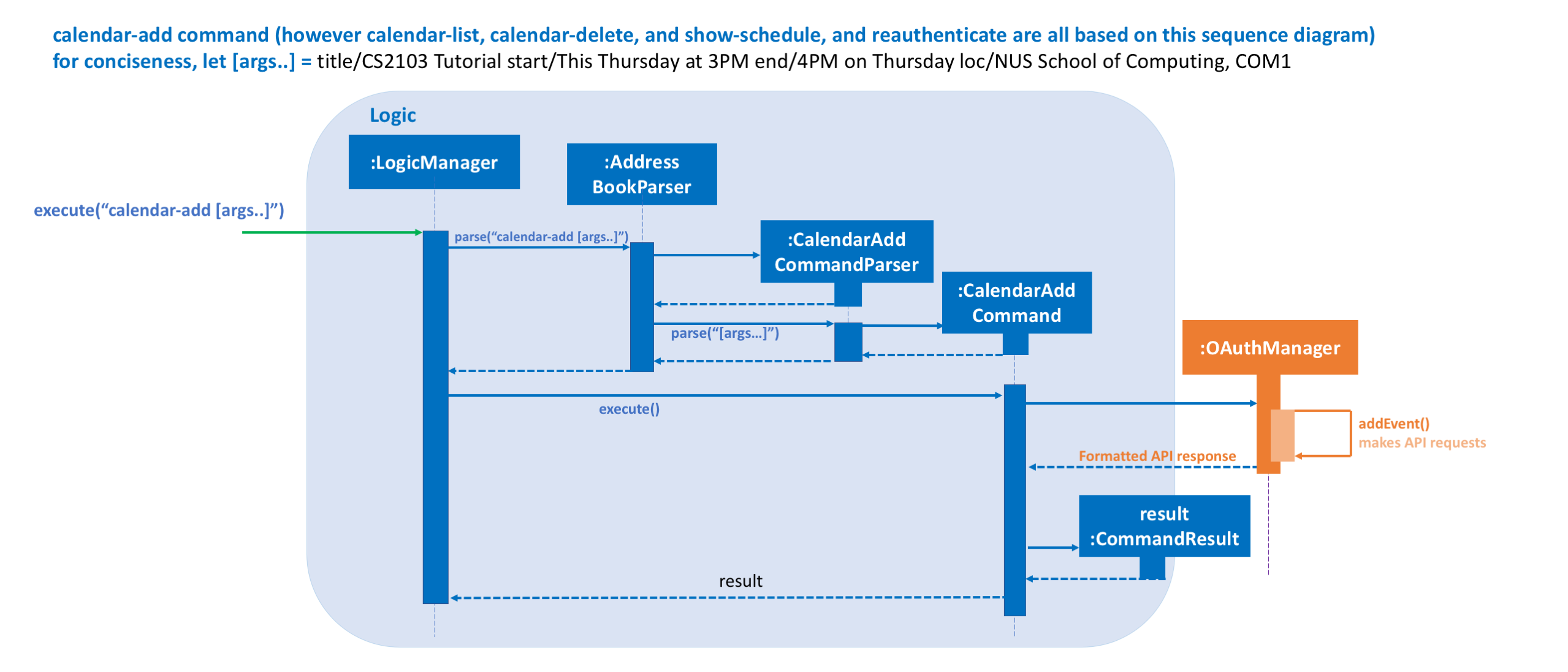
UML Sequence Diagram of Proposed Command Flow For calendar-add Command
Every command that requires OAuth (i.e. calendar-add, calendar-delete, calendar-list, show-schedule, and reauthenticate) will follow a similar flow with the potential commision of the parse step depending on the command.
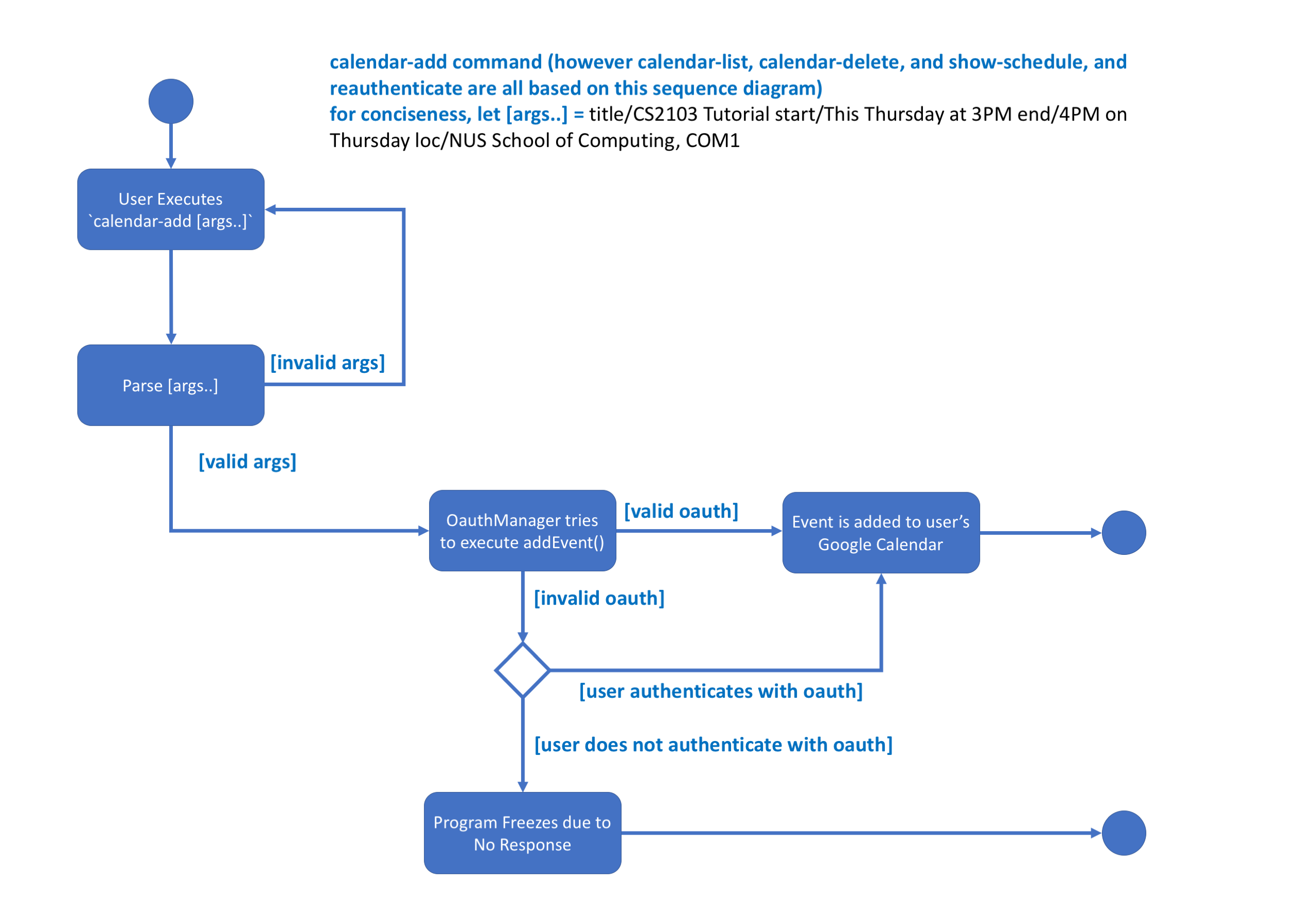
UML Activity Diagram of High Level Logic Flow For calendar-add Command
Every command that requires OAuth (i.e. calendar-add, calendar-delete, calendar-list, show-schedule, and reauthenticate) will follow a similar flow with the potential commision of the parse step depending on the command.
Design Considerations
Aspect: GUI
-
Alternative 1 (current choice): Native Google Calendar WebView
-
Pros: Minimal effort to implement as it is just a wrapper about the existing Google Calendar UI. Data is managed and secured by Google.
-
Cons: Cannot customize the interface without injecting customize styles. Requires complicated OAuth 2.0 authentication to work. Assumes that the user already has a Google account.
-
-
Alternative 2: CalendarFX
-
Pros: Can more easily create a custom UI and not rely on Google Calendar.
-
Cons: Documentation does not explain how to interface with the UI / Storage. Optimal if used with Google Calendar anyway. In the absense of using Google Calendar, it would require a custom local storage layer for persistant data.
-
-
Alternative 3: JFXtras
-
Pros: Simple adgenda view with relatively simple API to understand.
-
Cons: Not as feature rich as the other options and would require a custom local storage layer to have persistant data.
-
-
Alternative 4: Pure CLI Interface
-
Pros: Simple adgenda view with relatively simple API to understand.
-
Cons: Not as feature rich as the other options and would require a custom local storage layer to have persistant data.
-
Aspect: Data Access
-
Alternative 1 (current choice): Use OAuth
-
Pros: Can take advantage of Google’s first-party Calendar APIs for seamless CLI data manipulation.
-
Cons: Extremely complicated to configure and set up in a testable way.
-
-
Alternative 2: Require the user to export their existing Google Calendar and import it into the application. New events added to the SLAP calendar would not appear in their Google Calendar.
-
Pros: Does not require complex authentication and is thus easier to implement. Solution works offline.
-
Cons: Requires additional local storage implementations and calendar events are no longer synced to the cloud.
-
Cons: Less secure due to the requirement of local storage; more prone to file loss.
-
Aspect: Implementation of AddEventCommand → calendar-add [args..]
-
Alternative 1 (current choice): Use Google’s Calendar API
-
Pros: First-party direct access to Google Calendar data.
-
Cons: Requires the user to authenticate our application before this feature works correctly.
-
Cons: Requires a complex parser to make the input format more friendly for a wider range of users.
-
-
Alternative 2: Use URL Params
-
Pros: Does not require Oauth and is therefore easier to implement.
-
Cons: Requires the user to confirm the event addition through a GUI action, thus not allowing for a true CLI-only experience.
-
Aspect: Implementation of ViewCalendarCommand → calendar-launch and switch calendar
-
Alternative 1 (current choice): Open a Webview (either as a new window or within the main application gui)
-
Pros: Low development cost as the webview exists already.
-
Pros: Visually clear to the user how their calendar (and events) is organized.
-
Cons: Requires an internet connection. Has no CLI-friendly output.
-
-
Alternative 2: List events in the CLI (see next consideration)
-
Pros: CLI-only friendly. Does not require a webview and thus makes the application less resource intensive.
-
Cons: Higher development cost as it becomes necessary to format the response from Google’s APIs (and write a new set of logic to parse and format the data.)
-
Aspect: Implementation of ViewCalendarEventsCommand → calendar-list
-
Alternative 1 (current choice): CLI Output
-
Pros: Provides a command-line friendly way to view upcoming calendar events.
-
Cons: Much higher development cost as it was necessary to parse and format the response from Google’s APIs.
-
Cons: Requires OAuth.
-
Cons: Less visually clear to the user how their events are spaced out temporally.
-
-
Alternative 2: Create a new calendar interface similar to the Contacts Pane
-
Pros: Pros: Visually easy to parse and thematically in line with the overall design language of the application.
-
Cons: Requires a significant implementation change to adapt the UI due to the non-locally stored nature of the data from Google.
-
Aspect: Implementation of ViewCalendarEventsForParticularDayCommand → show-schedule [args..]
-
Alternative 1 (current choice): CLI Output
-
Pros: Can adapt
calendar-listcommand but increase specificity. -
Pros: Can pass this data to the daily scheduler feature to minimize duplicate code generation.
-
Cons: Less visually clear to the user how their events are spaced out temporally.
-
Cons: Requires OAuth.
-
-
Alternative 2: Create a new calendar interface similar to the Contacts Pane
-
Pros: Visually easy to parse and thematically in line with the overall design language of the application.
-
Pros: Can reuse the
calendar-listalternative 2 code if that route is decided upon. -
Cons: Requires a significant implementation change to adapt the UI due to the non-locally stored nature of the data from Google.
-
Aspect: Implementation of EditEventCommand → calendar-edit [Coming in v2.0]
-
Alternative 1 (current choice): Use Google’s Calendar API
-
Pros: First-party direct access to Google Calendar data.
-
Cons: Requires the user to authenticate our application before this feature works correctly.
-
-
Alternative 2: Only allow for graphical editing
-
Pros: No implementation required as everything happens through the spawned webview.
-
Cons: No CLI-friendly output. More resource intensive on the end-user’s system.
-
Aspect: Implementation of DeleteEventCommand → calendar-delete [args..]
-
Alternative 1 (current choice): Use Google’s Calendar API
-
Pros: First-party direct access to Google Calendar data.
-
Pros: Scales well with multiple users (sandboxed credential authorization).
-
Cons: Requires the user to authenticate our application before this feature works correctly.
-
-
Alternative 2: Only allow for graphical deleting
-
Pros: No implementation required as everything happens through the spawned WebView.
-
Cons: No CLI-friendly output. More resource intensive on the end-user’s system.
-
Cons: Does not scale well with multiple users.
-
Calendar Tools
-
Displaying the calendar within a WebView
-
Notes: The signed in user within the WebView is not linked to the Oauth certificate. See the Calendar Quick Start in the UserGuide.adoc for more information.
-
Test case:
calendar-launchand not logged in
Expected: Error log command states that you must be logged in to use the command. -
Test case:
View > Open Calendarand not logged in
Expected: Calendar WebView opens and states that you must be logged in to use the feature. -
Test case: Press
F8and not logged in
Expected: Calendar WebView opens and states that you must be logged in to use the feature. -
Test case:
calendar-launchand logged in
Expected: Calendar WebView opens and the calendar is displayed (if not signed in to a Google Calendar account, the user will be prompted to sign in). -
Test case:
View > Open Calendarand logged in
Expected: Calendar WebView opens and the calendar is displayed (if not signed in to a Google Calendar account, the user will be prompted to sign in). -
Test case: Press
F8and logged in
Expected: Calendar WebView opens and the calendar is displayed (if not signed in to a Google Calendar account, the user will be prompted to sign in). -
Test case:
logoutwith open calendar WebViews open (one or many)
Expected: All calendar windows close and user is logged out from signed-in calendar sessions (verify by logging as any user).
-
-
Displaying the calendar within the scene switcher
-
Notes: The signed in user within the Calendar scene is not linked to the Oauth certificate. See the Calendar Quick Start in the UserGuide.adoc for more information.
-
Test case:
switch calendarand not logged in
Expected: Switch case states that you must be logged in to use the command. -
Test case:
switch calendarand logged in
Expected: Scene is switched to display the calendar (if not signed in to a Google Calendar account, the user will be prompted to sign in). -
Test case:
logoutand logged in
Expected: User is signed out from the calendar scene session (verify by logging in as any user).
-
-
Reauthenticating Oauth certificate for calendar use
-
Notes: The signed in user within the Calendar scene is not linked to the Oauth certificate. See the Calendar Quick Start in the UserGuide.adoc for more information.
-
Test case:
reauthenticateand not logged in
Expected: Reauthenticate command states that you must be logged in to use the command. -
Test case:
reauthenticateand logged in
Expected: System default browser is launched and user is asked to select an account to authenticate the SLAP app to manage. Failure to do so will freeze the application. Once permission has been granted, a test event will be added and deleted.
-
-
Adding a calendar event
-
Notes: The signed in user within the Calendar scene is not linked to the Oauth certificate. See the Calendar Quick Start in the UserGuide.adoc for more information.
-
Prerequisites: User is logged in and has authenticated SLAP via Oauth. See the Calendar Quick Start in the UserGuide.adoc for more information.
-
Test case:
calendar-addand not logged in
Expected: calendar-add command states that you must be logged in to use the feature. -
Test case:
calendar-addand logged in
Expected: calendar-add will detect missing parameters and inform the user how to use the feature. -
Test case:
calendar-add title/Some Eventand logged in (i.e. missing start/DATETIME and/or end/DATETIME flag)
Expected: calendar-add will detect missing parameters and inform the user how to use the feature. -
Test case:
calendar-add title/Test Event start/ end/and logged in (i.e. missing start/ and/or end/ flag input) +
Expected: Nothing will happen (no feedback to user — will be fixed in v2.0). -
Test case:
calendar-add title/CS2103 Tutorial start/This Thursday at 3PM end/4PM on Thursdayand logged in (i.e. missing loc/LOCATION flag)
Expected: If user does not have a valid Oauth certificate, the system default browser is launched and asks the user to select an account to authorize the SLAP app to manage. Failure to do so will freeze the application. calendar-add command will add event to authorized Google Calendar and show the user the event details with a link to the event. -
Test case:
calendar-add title/CS2103 Tutorial start/This Thursday at 3PM end/4PM on Thursday loc/NUS School of Computing, COM1, 13 Computing Drive, Singapore 117417and logged in
Expected: If user does not have a valid Oauth certificate, the system default browser is launched and asks the user to select an account to authorize the SLAP app to manage. Failure to do so will freeze the application. calendar-add command will add event to authorized Google Calendar and show the user the event details with a link to the event.
-
-
Listing upcoming calendar events in the command results box
-
Notes: The signed in user within the Calendar scene is not linked to the Oauth certificate. See the Calendar Quick Start in the UserGuide.adoc for more information.
-
Prerequisites: User is logged in and has authenticated SLAP via Oauth. See the Calendar Quick Start in the UserGuide.adoc for more information.
-
Test case:
calendar-listand not logged in + h Expected: calendar-list command states that you must be logged in to use the feature. -
Test case:
calendar-listand logged in
Expected: If user does not have a valid Oauth certificate, the system default browser is launched and asks the user to select an account to authorize the SLAP app to manage. Failure to do so will free the application. Assuming a valid certificate is obtained, if the user has any upcoming events, they will be displayed (up to 250). Otherwise, the command will state that no upcoming events were found.
-
-
Deleting a calendar event
-
Notes: The signed in user within the Calendar scene is not linked to the Oauth certificate. See the Calendar Quick Start in the UserGuide.adoc for more information.
-
Prerequisites: List all upcoming events using the
calendar-listcommand or list events for a particular say usingshow-schedule d/DATE. A non-zero amount of events is required in either case. -
Prerequisites: User is logged in and has authenticated SLAP via Oauth. See the Calendar Quick Start in the UserGuide.adoc for more information.
-
Test case:
calendar-delete 1and not logged in
Expected: calendar-list command states that you must be logged in to use the feature. -
Test case:
calendar-delete 1and logged in and neithercalendar-listnorshow-schedulehas been run
Expected: Nothing will happen. -
Test case:
calendar-delete 1and logged in andcalendar-listnorshow-schedulehas been run but no events are displayed+ Expected: calendar-delete command will throw an invalid index exception and inform the user of the proper command usage. -
Test case:
calendar-delete 1and logged in andcalendar-listnorshow-schedulehas been run and a non-zero number of events are displayed+ Expected: calendar-delete command will delete the event at index 1 and inform the user of the deleted event. -
Test case:
calendar-delete 5and logged in andcalendar-listnorshow-schedulehas been run and a non-zero, but less than 5, number of events are displayed+ Expected: calendar-delete command will delete an invalid index exception and inform the user of the proper command usage.
-
-
Display the user’s events for a particular day in the command results box
-
Notes: The signed in user within the Calendar scene is not linked to the Oauth certificate. See the Calendar Quick Start in the UserGuide.adoc for more information.
-
Prerequisites: User is logged in and has authenticated SLAP via Oauth. See the Calendar Quick Start in the UserGuide.adoc for more information.
-
Test case:
show-schedule d/May 5
Expected: If there are calendar events for this date, they will be displayed. Otherwise, a message will inform the user that there are no events for this day. -
Test case:
show-schedule d/On Tuesday
Expected: If there are calendar events for this date, they will be displayed. Otherwise, a message will inform the user that there are no events for this day. -
Test case:
show-schedule
Expected: Display invalid command format and display correct command usage. -
Test case:
show-schedule d/May 5 after 2PMExpected: Ignores the time; If there are calendar events for this date at any time, they will be displayed. Otherwise, a message will inform the user that there are no events for this day.
-
-
Displaying the error log within a WebView
-
Test case:
errorlogand not logged in
Expected: Error log command states that you must be logged in to use the command. -
Test case:
View > Show Error Logand not logged in
Expected: Error log WebView opens and states that you must be logged in to use the feature. -
Test case:
errorlogand logged in
Expected: Error log WebView opens and the error log is displayed. -
Test case:
View > Show Error Logand logged in
Expected: Error log WebView opens and the error log is displayed. -
Test case:
logoutwith open error logs WebViews open (one or many)
Expected: All error log windows close.
-