By: CS2103-T15-B3 Since: FEB 2018 Licence: MIT
1. Introduction
Session Logger and Planner (SLAP) for Social Workers is for those who prefer to use a desktop app for managing their schedule and contacts. More importantly, SLAP is optimized for those who prefer to work with a Command Line Interface (CLI) while still having the benefits of a Graphical User Interface (GUI). If you can type fast, SLAP can get your daily scheduling and contact management tasks done faster than traditional GUI apps. Interested? Jump to the Section 2, “Quick Start” to get started. Enjoy!
2. Quick Start
-
Ensure you have Java version
1.8.0_60or later installed in your Computer.Having any Java 8 version is not enough.
This app will not work with earlier versions of Java 8. -
Download the latest
slap-app.jarhere. -
Copy the file to the folder you want to use as the home folder for your Session Logger and Planner (SLAP) for Social Workers app.
-
Double-click the file to start the app. The application main window should appear in a few seconds.
-
You firstly need to create a user account with a unique username and password. (See
create-usercommand in Section 5, “Features”) -
If you do not wish to create a new user, there is a default user account available. The username is "user" and the password is "pass".
-
Login into your account using the
logincommand (See Section 5, “Features”) and using your username and password. -
If login is successful, the GUI below should appear.
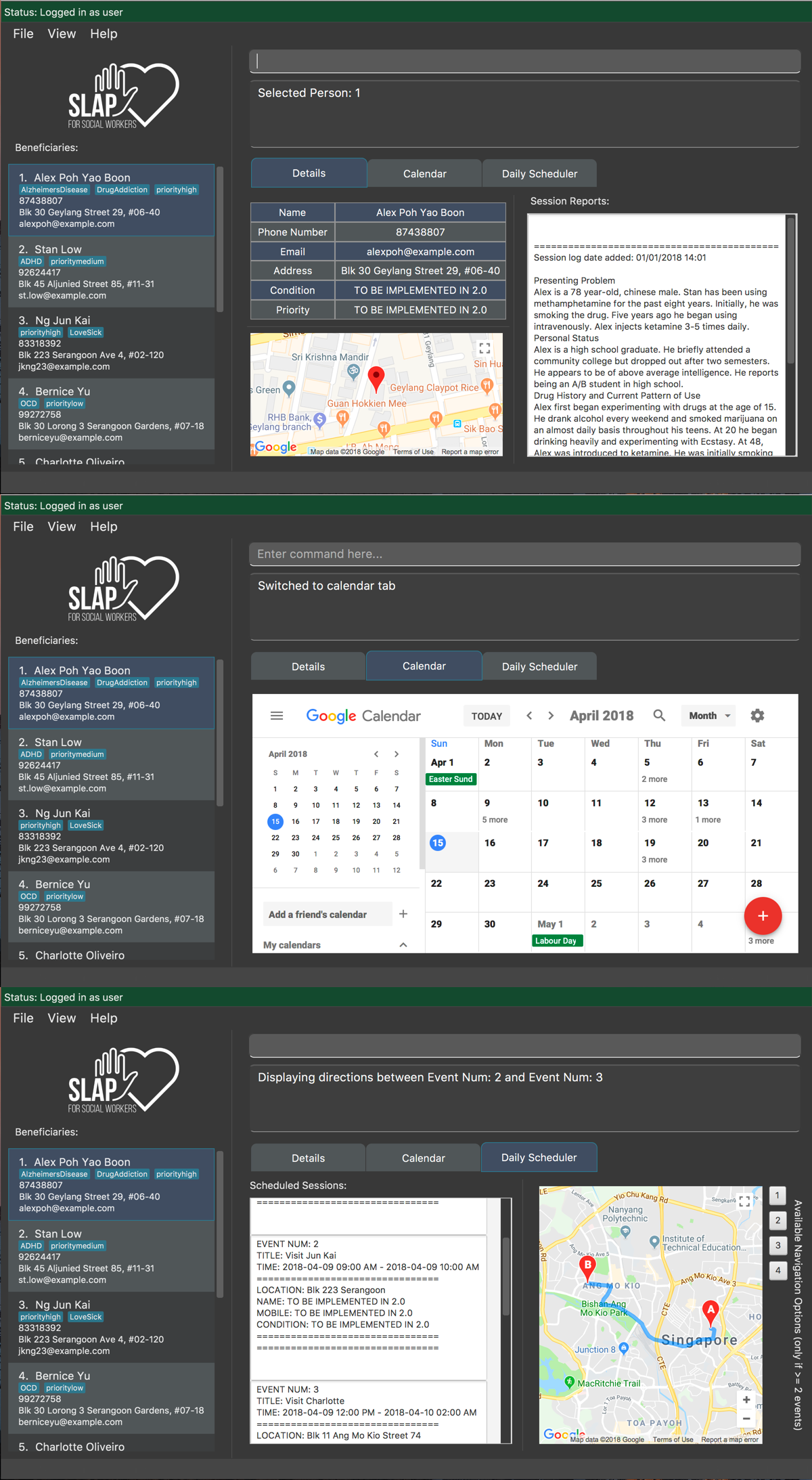 Figure 1. SLAP application UI mock-up.
-
Type the command in the command box and press Enter to execute it.
e.g. typinghelpand pressing Enter will open the help window. -
Some example commands you can try:
-
*
add-log 2 log/Patient is feeling unwell today* : Adds a session log to the 2nd person shown in the current list. -
list: lists all contacts -
addn/John Doe p/98765432 e/johnd@example.com a/John street, block 123, #01-01: adds a contact namedJohn Doeto the Address Book. -
delete3: deletes the 3rd contact shown in the current list -
exit: exits the app
-
-
Refer to Section 5, “Features” for details of each command.
3. User Interface
The figures below show the various interfaces of SLAP. This section will help you understand the different sections of SLAP.
Before beginning:
Before you can see all the features of SLAP, you are required to log into your account.
You can either use login u/user p/pass for the default account as a trial or create your own account using
create-user user/USERNAME pass/PASSWORD.
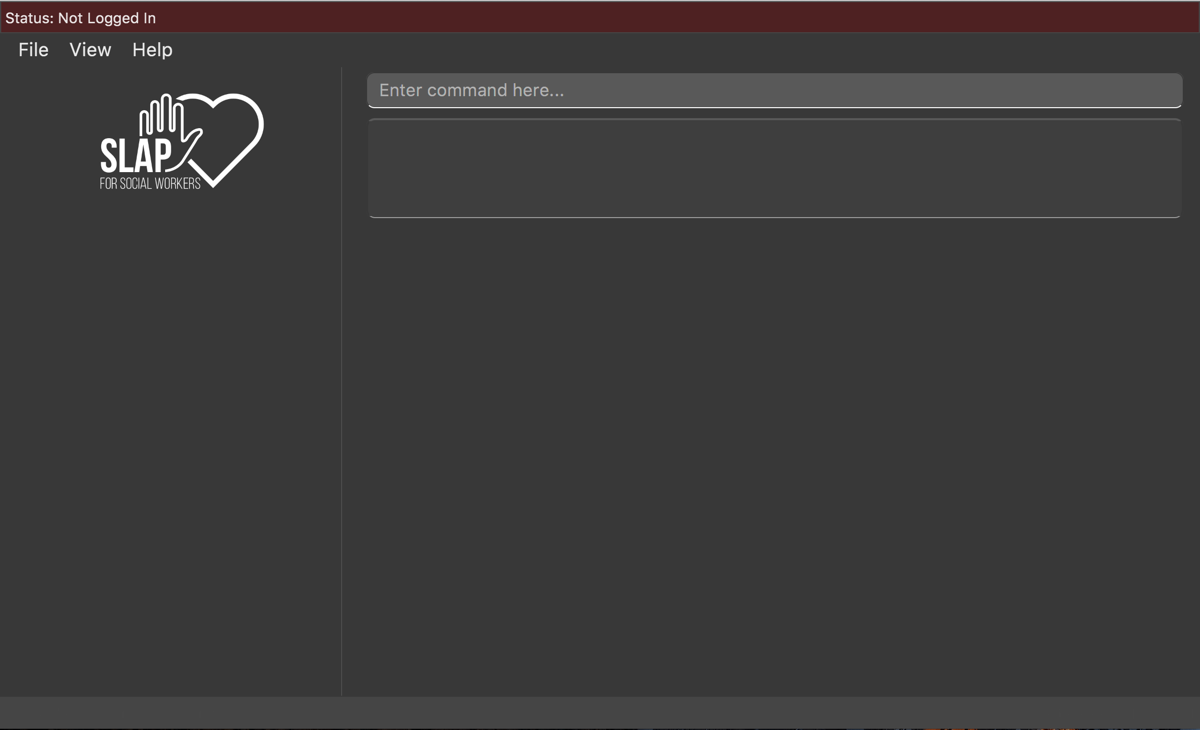
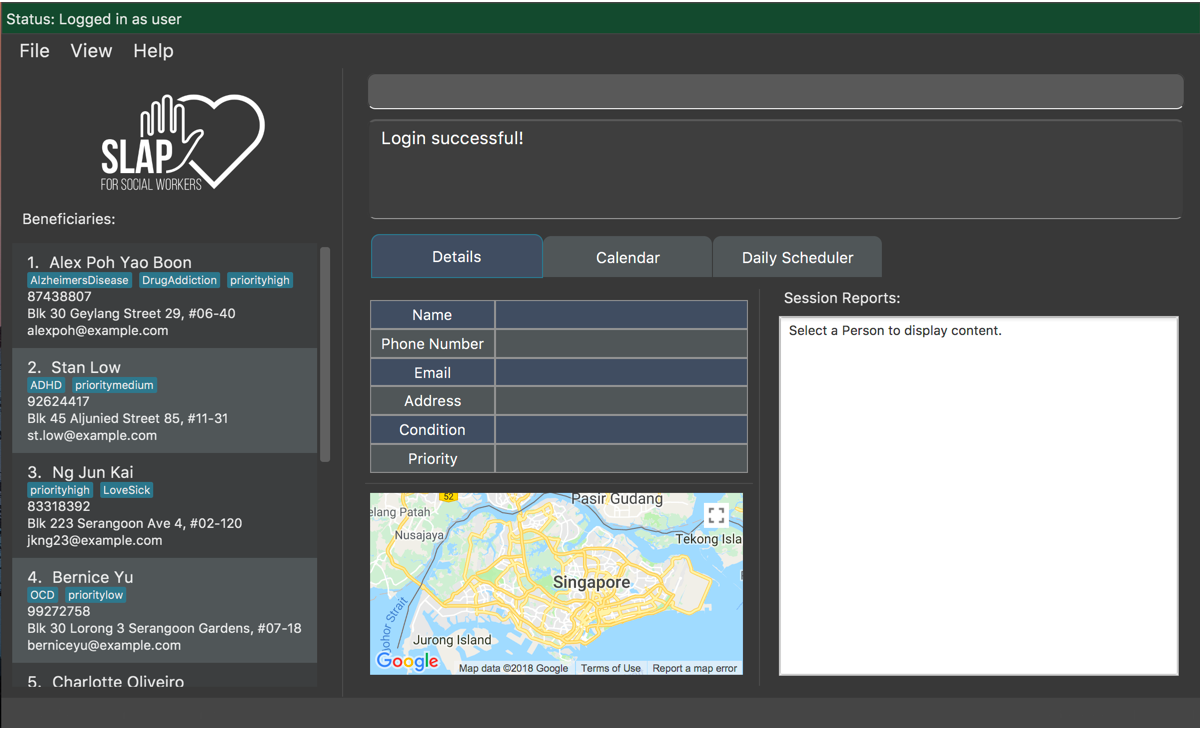
Sections of the Main User Interface:
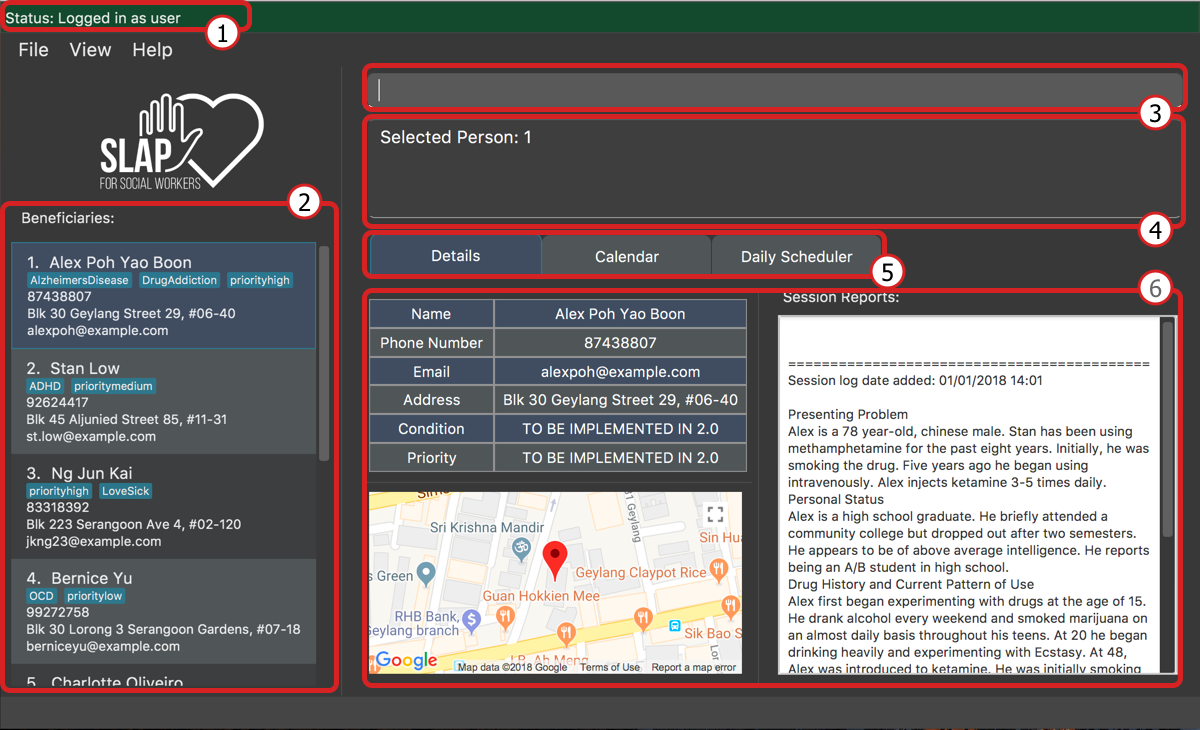
-
Login Status Bar:
Displays username and indicates if user is logged in. -
Beneficiary List Panel:
Displays all beneficiaries existing in the program. -
Command Box:
Takes in the input by the user. -
Command Box Notification:
Notifies the command feedback to the user. -
Features Tab:
Indicates current feature being viewed scheduled in the program. -
Features Panel:
Executingswitch FEATUREand/or clicking on respective tab onFeatures Tabwill trigger this region to display the respective feature panel.
Sections of the Person Details Feature:
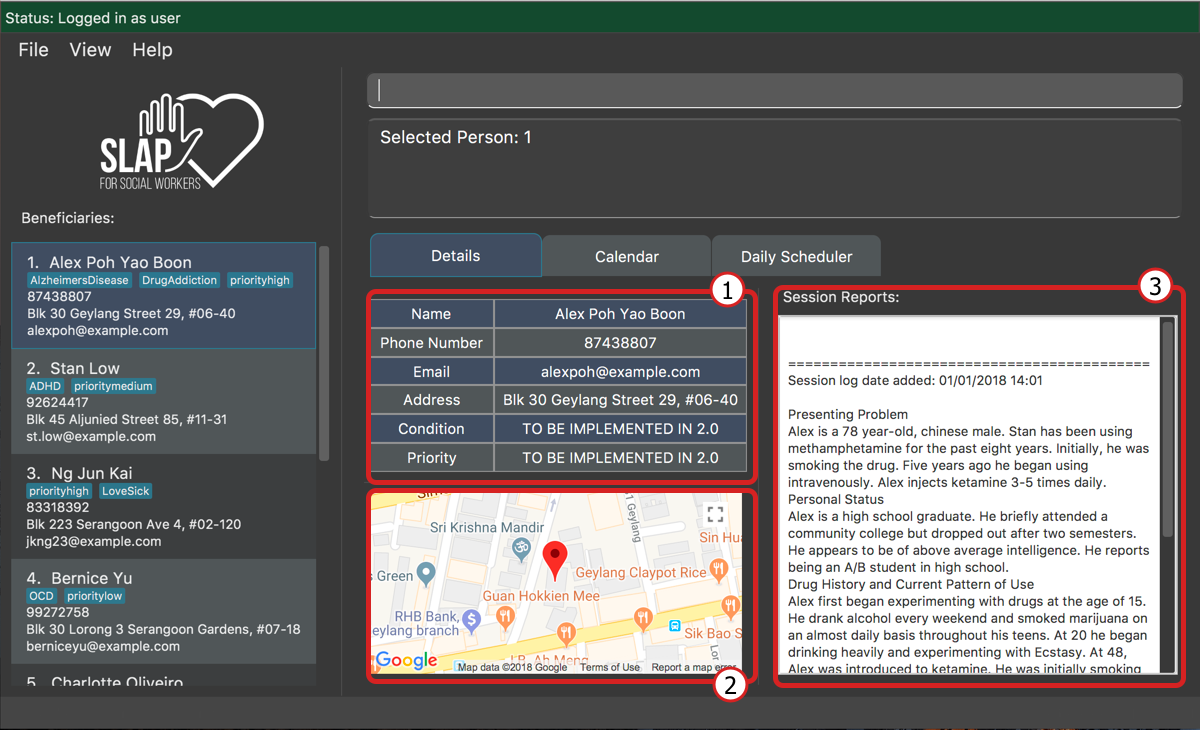
-
Table of Particulars:
Displays the particulars of the selected beneficiary. -
Address Location Panel:
Marks and displays the address of the beneficiary on a map component. -
Session Reports Panel:
Displays the existing session logs of the selected beneficiary.
Sections of the Calendar Feature:
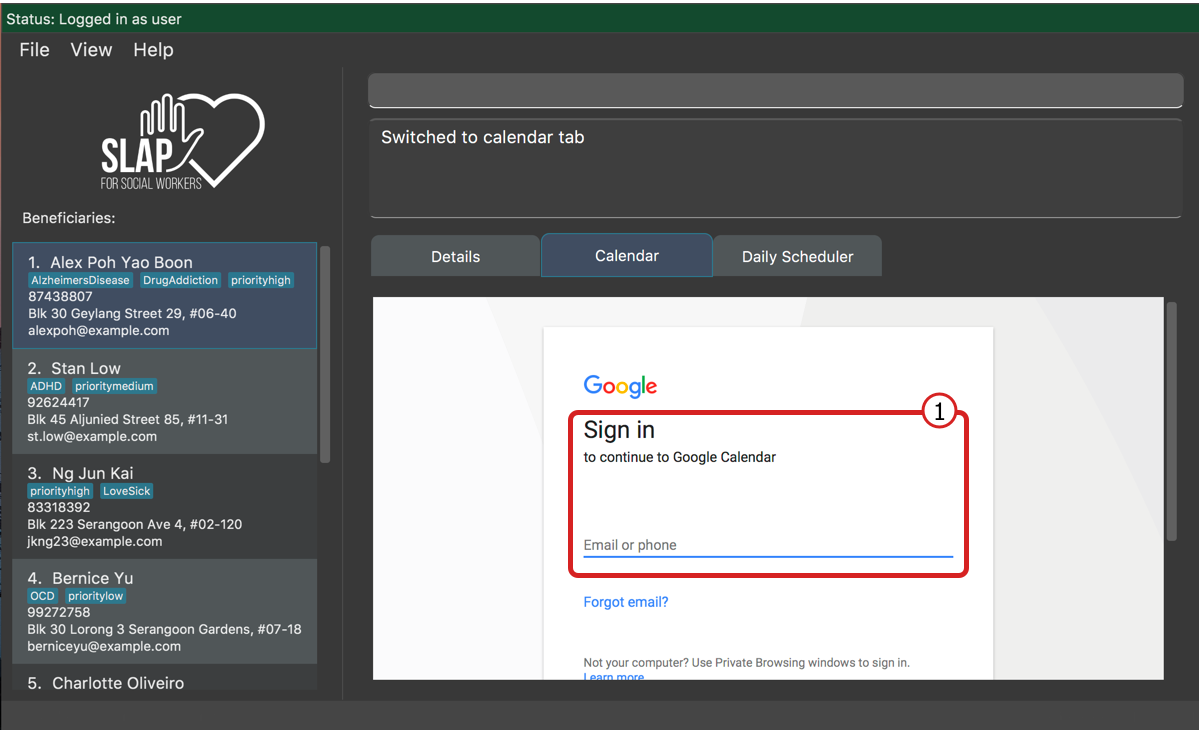
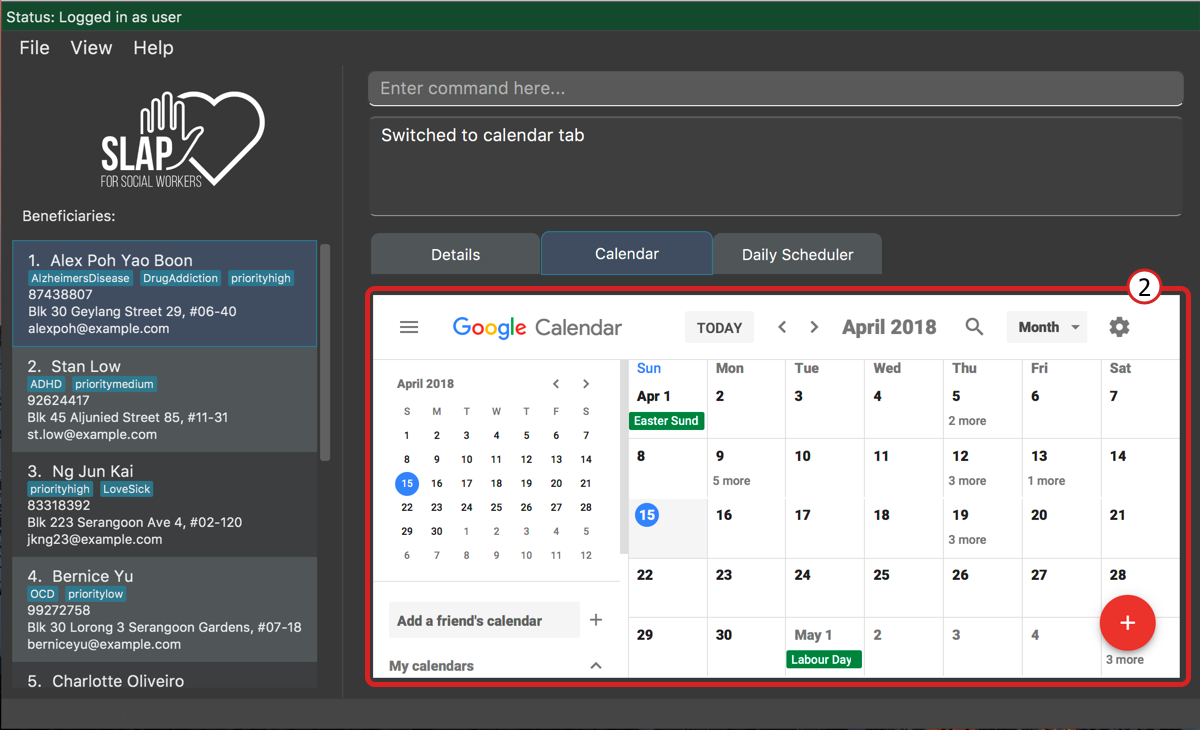
-
Log in for Display of Calendar:
Requires user to log in to Google Calendar account within the app to display the calendar. Note that this log in is separate from the permissions request that authorises SLAP to run Calendar functions. (For more information check outCalendar Toolssection) -
Display of Calendar:
After logging in, the user will be able to see the calendar paired with SLAP.
Sections of the Daily Scheduler Feature:
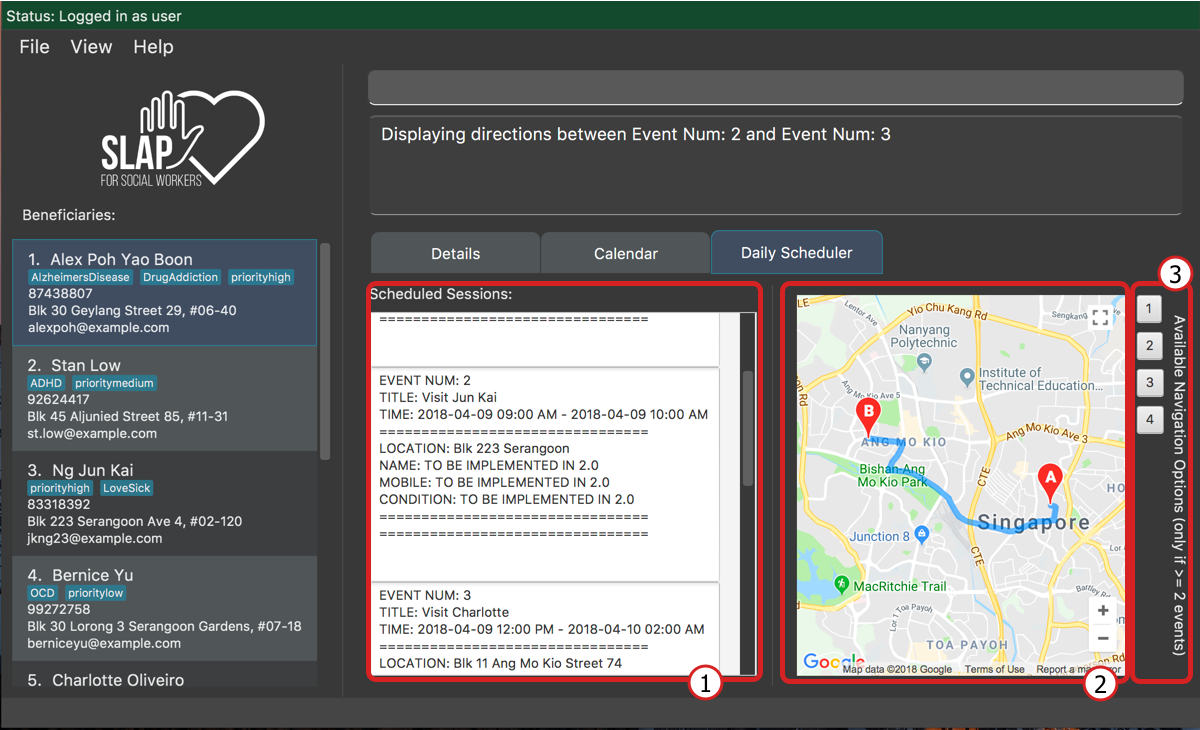
-
Scheduled Sessions List Panel:
Displays the scheduled events here after callingshow-schedule d/DATE. -
Direction Between Events Map Panel:
Displays a suggested navigation route between events after callingnavigate INDEXwhere, for examplenavigate 1will display the direction between events number 1 and 2 of the day. -
Navigation Options Indicator:
Displays a number of buttons at the side of map to indicate journeys available to navigate. This will correspond to the valid indexes fornavigate INDEX.
4. Calendar Quick Start
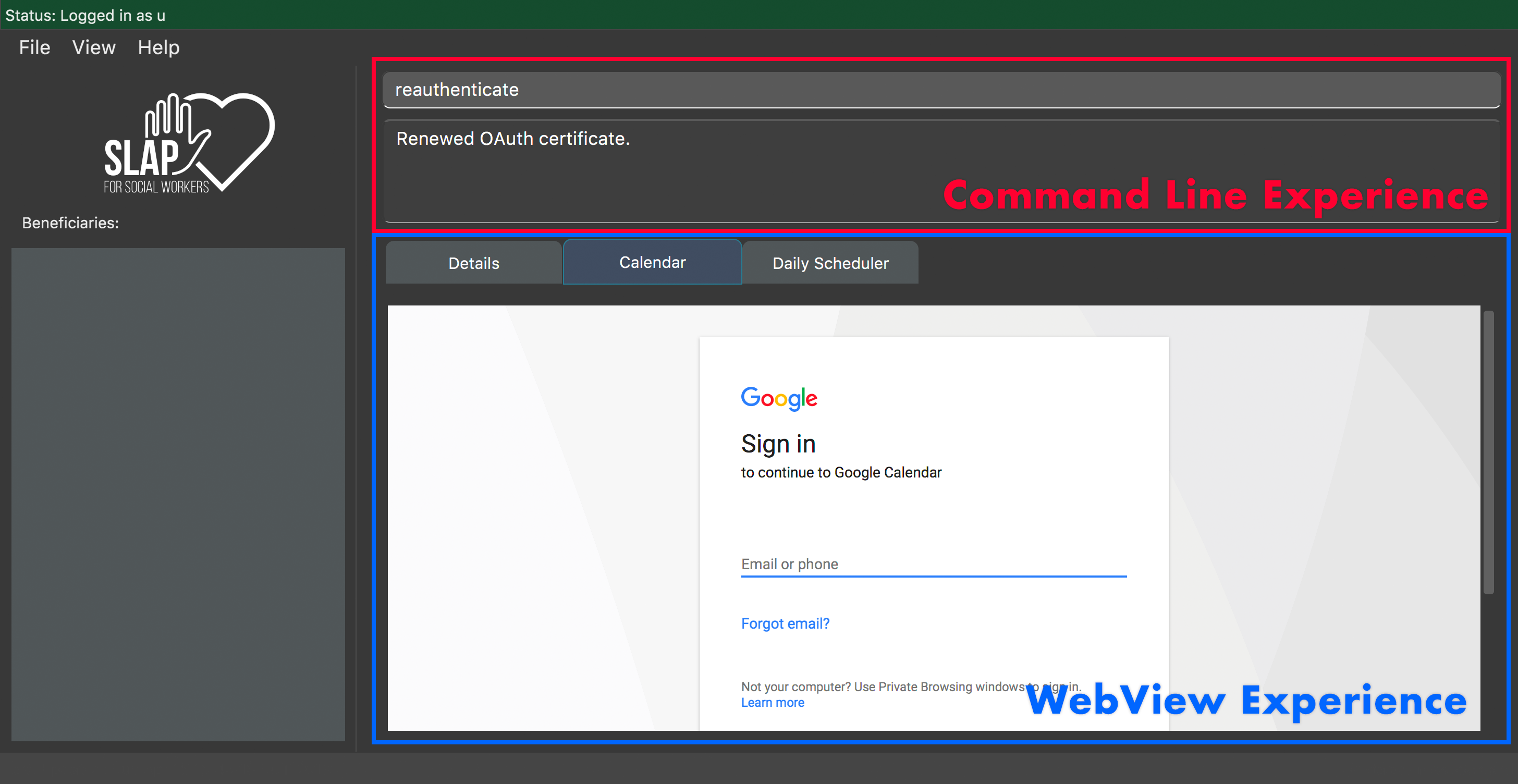
This section is meant to be a brief explanation on the various Google Calendar integrations built into the SLAP app.
-
WebView versus Command Line Experiences
-
WebView Experiences include:
switch calendar,calendar-launch, pressingF8, andView > Open Calendar -
Command Line Experiences (i.e. require an OAuth certificate) include:
calendar-add,calendar-delete,calendar-list,show-schedule, and reauthenticate
-
-
How are these features related?
-
The WebView Experiences and Command Line experiences are not linked by default. That is, you can technically log into one Google account within the WebView experience and authorize SLAP to manage a different account via CLI without any issues programatically. The WebView experiences will work as intended, and the command line experiences will work as well, however they will be operating on seperate Google Calendar accounts.
-
The WebView experience is meant to act as a front-end for the CLI operations.
-
Each of the WebViews share the same cookies / cache. You cannot log into one account in one WebView and another account in a different WebView.
-
-
What is OAuth and why is it required?
-
OAuth is a secure authorization protocol that allows for the authorization of third party applications to access specific subsets of a user’s data from a specific service without exposing their password directly to the service requesting the data. For the SLAP app, OAuth is being used to enable communication directly with Google’s Calendar services to manage a user’s calendar via API calls, provided that they have authorized the application to do so. This is what enables command line interaction with Google Calendar.
-
-
How can I ensure that both my WebView and Command Line experiences are operating on the same calendar?
-
After logging in to the SLAP application, first, execute the
switch calendarcommand and log in with the desired user account in the presented WebView of the Google Calendar web application. Alternatively, you may perform any of the following actions to launch a floating WebView containing the same Google Calendar web application to log in to: executecalendar-launch,View > Open Calendar, pressF8. -
Once you have signed in with the desired Google account inside any of the calendar WebViews, execute the
reauthenticatecommand. Your system browser should launch and ask you to select the account that you wish to authorize the SLAP application to manage. Ensure that you select the same account as the one you have just logged in to within the SLAP app’s calendar WebViews. Note that at this point, if you do not authorize an account, the SLAP application will freeze and crash. -
After successfully selecting an account, you may close your system browser and return to the SLAP app.
-
Congratulations! You have successfully synchronized the two Google Calendar experiences (i.e. WebView and Command Line) within the SLAP app.
-
5. Features
Command Format
-
Words in
UPPER_CASEare the parameters to be supplied by the user e.g. inadd n/NAME,NAMEis a parameter which can be used asadd n/John Doe. -
Items in square brackets are optional e.g
n/NAME [t/TAG]can be used asn/John Doe t/friendor asn/John Doe. -
Items with
… after them can be used multiple times including zero times e.g.[t/TAG]…can be used ast/friend,t/friend t/familyetc. -
Parameters can be in any order e.g. if the command specifies
n/NAME p/PHONE_NUMBER,p/PHONE_NUMBER n/NAMEis also acceptable.
5.1. Help Guide
5.1.1. Viewing help : help
Opens a new user guide window.
Format: help
5.2. Multi-user and Authentication
5.2.1. Create new user : create-user
Creates a new user account in the application.
Format: create-user u/USERNAME p/PASSWORD
e.g. create-user u/marcus p/pass
|
5.2.2. Delete existing user : delete-user
Deletes an existing user account in the application.
Format: delete-user u/USERNAME p/PASSWORD
|
You will need to be logged out to use this Command. This command will also delete the user’s Oauth token. |
5.2.3. Login : login
Logs the user into the application.
Format: login u/USERNAME p/PASSWORD
5.2.4. Logout: logout
Logs the user out of the application.
Format: logout
|
Logging out will close all open calendar and errorlog windows, log out of any Google Calendar sessions, and clear the Daily Scheduler view. |
5.2.5. Change user password: change-user-password
Change the password of an existing user in the application.
Format: change-user-password u/USERNAME p/PASSWORD newp/NEWPASSWORD
|
You will need to be logged out to use this Command. |
5.2.6. 2-Factor Authentication [Coming in v2.0]
User have to use another form of authentication to log in (most probably a one-time password).
5.3. Application Navigation
5.3.1. Switching between feature interfaces : switch
|
All |
Examples:
-
switch details
Switches todetailstab and displays contents -
switch calendar
Switches tocalendartab and displays contents -
switch scheduler
Switches toschedulertab and displays contents
5.4. Contacts Manipulation
5.4.1. Adding a person: add
Adds a person to the address book
Format: add n/NAME p/PHONE_NUMBER e/EMAIL a/ADDRESS [t/TAG]…
| A person can have any number of tags (including 0) |
Examples:
-
add n/John Doe p/98765432 e/johnd@example.com a/John street, block 123, #01-01 -
add n/Betsy Crowe t/friend e/betsycrowe@example.com a/Newgate Prison p/1234567 t/criminal
5.4.2. Listing all persons : list
Shows a list of all persons in the address book.
Format: list
5.4.3. Editing a person : edit
Edits an existing person in the address book.
Format: edit INDEX [n/NAME] [p/PHONE] [e/EMAIL] [a/ADDRESS] [t/TAG]…
Examples:
-
edit 1 p/91234567 e/johndoe@example.com
Edits the phone number and email address of the 1st person to be91234567andjohndoe@example.comrespectively. -
edit 2 n/Betsy Crower t/
Edits the name of the 2nd person to beBetsy Crowerand clears all existing tags.
5.4.4. Locating persons by name: find
Finds persons whose names contain any of the given keywords.
Format: find KEYWORD [MORE_KEYWORDS]
Examples:
-
find John
ReturnsjohnandJohn Doe -
find Betsy Tim John
Returns any person having namesBetsy,Tim, orJohn
5.4.5. Filtering contacts by tag: filter
Filters persons to only display those whose contact contains the given tag.
Format: filter TAG
Examples:
-
filter friends
Returns any person that has the tagfriends
5.4.6. Deleting a person : delete
Deletes the specified person from the address book.
Format: delete INDEX
Examples:
-
list
delete 2
Deletes the 2nd person in the address book. -
find Betsy
delete 1
Deletes the 1st person in the results of thefindcommand.
5.4.7. Selecting a person : select
Selects the person identified by the index number used in the last person listing.
Format: select INDEX
Examples:
-
list
select 2
Selects the 2nd person in the address book. -
find Betsy
select 1
Selects the 1st person in the results of thefindcommand.
5.4.8. Listing entered commands : history
Lists all the commands that you have entered in reverse chronological order.
Format: history
|
Pressing the ↑ and ↓ arrows will display the previous and next input respectively in the command box. |
5.5. Session Reports and Logs
5.5.1. Adding a new session report: add-log
Adds a new session report/log to the person identified by the index number used in the last person listing.
Format: add-log INDEX log\LOG
Example: add-log 2 log\Today the patient reported he was feeling unwell … …
5.5.2. Delete a existing session report: delete-log [Coming in v2.0]
Deletes a particular report/log from a person.
5.5.3. Edit a new session report: edit-log [Coming in v2.0]
Edits particular report/log entries from a person.
5.6. Map Tools
5.6.1. Navigate between scheduled events : navigate
Displays the directions between planned locations on the daily scheduler map.
Format: navigate INDEX
|
Must be on |
| Number of buttons on the right of the scheduler panel map indicates how many navigation options are available. |
Examples:
-
switch scheduler
Switches tocalendartab and displays contents -
show-schedule d/5 May
Retrieves events on the 5th of May. -
navigate 1
Displays directions between the first and the second event of the day.
5.7. Calendar Tools
5.7.1. Opening a calendar : calendar-launch
Opens a calendar in a webview.
Format: calendar-launch
|
The user can also open the calendar by pressing the The previous Logging in to the calendar interface DOES NOT perform the Oauth authentication process. |
Examples:
* calendar-launch
Opens the Google Calendar web app in a new WebView.
5.7.2. Adding and event to the calendar : calendar-add
Allows a user to add an event directly to their calendar.
Format: calendar-add title/EVENTNAME start/STARTDATETIME end/ENDDATETIME [loc/LOCATION]
|
Start/End times can be written in natural language (e.g. Today, This Friday, May 4, etc.) The expected behaviour is such that if no time is provided with the date, the program will assume that the the desired time is the current time. For example, if current time is 12am and the user does not specify a start or end time for the two dates that they provide, then the application will use 12am as both the start and end time for their input dates. Similarly, if no date is provided with the time, the program will assume that the desired day was the current day. For example, if the current time is 4am, and the start date is 12am and the end date is 6am, the created event will start on the current day at 12am and end at 6am on the same day. The location parameter is optional.
If either the start/ and/or end/ flag is not given an input parameter, nothing will happen and no feedback is given to the user — will be fixed in v2.0). |
Examples:
* calendar-add title/CS2103 Tutorial start/This Thursday at 3PM end/4PM on Thursday loc/NUS School of Computing, COM1, 13 Computing Drive, Singapore 117417
Adds an event named CS2103 tutorial that starts on the upcoming Thursday at 3pm and ends at 4pm, at the NUS School of Computing, COM1
-
calendar-add title/CS2103 Tutorial start/May 2 3PM end/4PM on May 2
Adds an event named CS2103 tutorial that starts on May 2 at 3pm and ends at 4pm with no location
5.7.3. List upcoming events in the command line: calendar-list
Allows a user to view their upcoming calendar events (limited to 250 events).
Format: calendar-list
|
|
Examples:
* calendar-list
Shows the user a list of their upcoming events (limited to 250 events).
5.7.4. Deleting an event from the calendar : calendar-delete
Allows the user to delete an event based on the index listed from the calendar-list or show-schedule d/DATE command.
Format: calendar-delete INDEX
|
If neither the |
Examples:
* calendar-list
Shows the user a list of their upcoming events (limited to 250 events) with indexes next to each event.
-
`calendar-delete 1*
Deletes the first event on that list.
5.7.5. Editing an event in the calendar : calendar-edit [coming in v2.0]
Displays a list of upcoming events to the user and lets them select one to edit.
Format: calendar-edit
5.7.6. Reauthenticate Google Oauth : reauthenticate
Allows a user to manually reauthenticate their Google Oauth credentials/permissions for SLAP.
Format: reauthenticate
|
This command is used to manually reauthenticate the Oauth certificate. The SLAP app will launch the system default browser (i.e. not a WebView) and ask them to select the account that they wish to grant the SLAP app permission to edit. Failure to authenticate will cause the program to freeze and crash. |
Examples:
* reauthenticate
Deletes the user’s existing Oauth certificate and attempts to regain authorization.
5.7.7. List upcoming events on a particular day in the command line: show-schedule
Allows a user to view their calendar events for a particular day.
Format: show-schdeule d/DATE
|
Date can be written in natural language (e.g. Today, This Friday, May 4, etc.) This command relies on Google Oauth to access the calendar. Whenever a Google Calendar-related command is executed, the Oauth certificate will be checked. If the user has not authorized the SLAP app to manage their calendar, the SLAP app will launch their system default browser (i.e. not a WebView) and ask them to select the account that they wish to grant the SLAP app permission to edit. Failure to authenticate will cause the program to freeze and crash. |
Examples * show-schedule d/This Thursday
Shows a list of events that occur on this coming Thursday.
-
show-schedule d/May 5
Shows a list of events that occur on May 5.
5.8. Other Tools
5.8.1. Opening the Error Log : errorlog
Opens the error log in a new window.
Format: errorlog
|
The user can also open the error log by pressing |
Examples:
* errorlog
Opens the user log in a new WebView.
5.8.2. Undoing previous command : undo
Restores the address book to the state before the previous undoable command was executed.
Format: undo
|
Undoable commands: those commands that modify the address book’s content ( |
Examples:
-
delete 1
list
undo(reverses thedelete 1command) -
select 1
list
undo
Theundocommand fails as there are no undoable commands executed previously. -
delete 1
clear
undo(reverses theclearcommand)
undo(reverses thedelete 1command)
undo(reverses thedelete 1command)
5.8.3. Redoing the previously undone command : redo
Reverses the most recent undo command.
Format: redo
Examples:
-
delete 1
undo(reverses thedelete 1command)
redo(reapplies thedelete 1command) -
delete 1
redo
Theredocommand fails as there are noundocommands executed previously. -
delete 1
clear
undo(reverses theclearcommand)
undo(reverses thedelete 1command)
redo(reapplies thedelete 1command)
redo(reapplies theclearcommand)
5.8.4. Clearing all entries : clear
Clears all entries from the address book.
Format: clear
5.8.5. Exiting the program : exit
Exits the program.
Format: exit
5.9. Exporting
5.9.1. Export SLAP : export-patients [coming in v2.0]
Exports your SLAP into a file so that it can be transported across operating systems or devices.
5.10. Storage Features
5.10.1. Saving the data
SLAP data are saved in the hard disk automatically after any command that changes the data.
There is no need to save manually.
5.10.2. Encrypting data files [coming in v2.0]
Encryption should be done automatically when SLAP is logged out or is exited.
6. FAQ
Q: How do I transfer my data to another Computer?
A: Install the app in the other computer and overwrite the empty data file it creates with the file that contains the data of your previous Address Book folder.
7. Command Summary
-
Help Guide :
help -
Create New User :
create-user u/USERNAME p/PASSWORDe.g.create-user u/marcus p/pass -
Delete Existing User :
delete-user u/USERNAME p/PASSWORD -
Change Password of Existing User :
change-user-password u/USERNAME p/PASSWORD newp/NEWPASSWORD -
Login :
login u/USERNAME p/PASSWORD -
Logout :
logout -
Add
add n/NAME p/PHONE_NUMBER e/EMAIL a/ADDRESS [t/TAG]…
e.g.add n/James Ho p/22224444 e/jamesho@example.com a/123, Clementi Rd, 1234665 t/friend t/colleague -
Clear :
clear -
Delete :
delete INDEX
e.g.delete 3 -
Edit :
edit INDEX [n/NAME] [p/PHONE_NUMBER] [e/EMAIL] [a/ADDRESS] [t/TAG]…
e.g.edit 2 n/James Lee e/jameslee@example.com -
Find :
find KEYWORD [MORE_KEYWORDS]
e.g.find James Jake -
List :
list -
Add Session Reports/Logs :
add-log INDEX log/LOGCONTENT -
Calendar Launch :
calendar-launch[Since v1.1] [Updated v1.4] -
Calendar List :
calendar-list[Since v1.2] -
Calendar Add :
calendar-add title/EVENTNAME start/STARTDATETIME end/ENDDATETIME [loc/LOCATION] `[Since v1.3] [Updated v1.4]
e.g. calendar-add title/CS2103 Tutorial start/This Thursday at 3PM end/4PM on Thursday loc/NUS School of Computing, COM1, 13 Computing Drive, Singapore 117417 -
Calendar Delete :
calendar-delete INDEX[Since v1.4]
e.g.calendar-delete 1 -
Show Schedule :
show-schedule d/DATE `[Since v1.4]
e.g.show-schedule d/May 5 -
Error :
errorlog[Since v1.2] -
Reauthenticate :
reauthenticate[Since v1.2] -
Select :
select INDEX
e.g.select 2 -
History :
history -
Switch :
switch FEATURE
e.g.switch scheduler -
Navigate :
navigate INDEX
e.g.navigate 2 -
Undo :
undo -
Redo :
redo