Overview
The Session Logger and Planner (SLAP) application for Social Workers is a desktop client used to help social workers manage their day-to-day operations. By creating an easy to use command-line interface with graphical elements, social workers can quickly manage their contacts (e.g. beneficiaries) as well as their schedule (i.e. their calendar and daily schedule) from one central location efficiently via the command line. In addition to a fully-featured address book and calendar through the use of command line input, the client also allows for social workers to take session notes and attach them to their beneficiaries, as well as generate an optimal route of their daily schedule to help organize their day.
On top of these features, a robust login system was implemented such that multiple users can securely switch between different accounts and have distinct address books, session reports, and calendars isolated from each other. Thus, not only does this allow for increased security, but it also allows for multiple users to use the same application on the same system, which has the added benefit of saving money as several people can share the same application on the same system without affecting the data of another person.
The social worker is to interact with the application primarily through the command line. The GUI was created using JavaFX.
Summary of contributions
Major enhancement: integrated Map APIs and added Daily Scheduler
-
Added the following UI controllers and FXML files:
DailySchedulerPanel.fxml
MapPanel.fxml
PersonDetailsPanel.fxml
ScheduledEventCard.fxml-
Added the following commands:
switch [args..]
navigate [args..]-
What it does: The enhancement adds the functionality of maps to display relevant location markers and a compiled daily schedule page that helps for route planning and task listing for the convenience of the social worker. From the using the command line alone, the user is able to see the locations of beneficiaries, suggested directions between scheduled events and display the events for the day.
-
Justification: This feature significantly improves the the user experience of the social worker as it bring together vital information to be displayed all in one app. By including a map display with the particulars of the beneficiary, it aids the social worker in planning their route for the day. Moreover, by including a separate daily scheduler feature, the social worker need not plow through their calendar check their scheduled events, simply use the daily scheduler to view events of a specific day and check the directions between locations. This feature allows for the social worker to easily re-plan their day if needed as all the information of events are collated in this feature.
-
Highlights: These features greatly improves the effectiveness of the application and laid the foundation for many events and UIs within the application. To maintain architectural integrity of the application where the UI is kept separate and is built to be events-driven, the Map Components had to be broken down into UI and Logic, where MapPanel.java controller and MapManager.java that handles logic were created respectively. Moreover, there was a need to work around existing limitations of GMapsFX where no more than one map can interact with Google APIs at the same time.
-
Credits: GMapsFX by rterp
-
Minor enhancement: Main GUI and CSS. Handled front-end interactions with user and the view of the application. Developing
the backend of the application is not enough to produce an effective product. Building upon the back-end laid out by my teammates,
I built GUI of the application to manage model data of the application. Apart from map controls already mentioned, I took charge
of displaying session logs, scheduled events, creating additional UI update events on existing commands. Handled the refreshing of
UI when logging out of the application. Made the user flow smoother by separating the features into their own panels and implemented,
switch command to swap between features. Additional CSS styling can be found in extensions.css.
Code contributed: [Functional code] [Test code]
Other contributions:
Contributions to the User Guide
Given below are sections I contributed to the User Guide. They showcase my ability to write documentation targeting end-users. |
User Interface
The figures below show the various interfaces of SLAP. This section will help you understand the different sections of SLAP.
Before beginning:
Before you can see all the features of SLAP, you are required to log into your account.
You can either use login u/user p/pass for the default account as a trial or create your own account using
create-user user/USERNAME pass/PASSWORD.
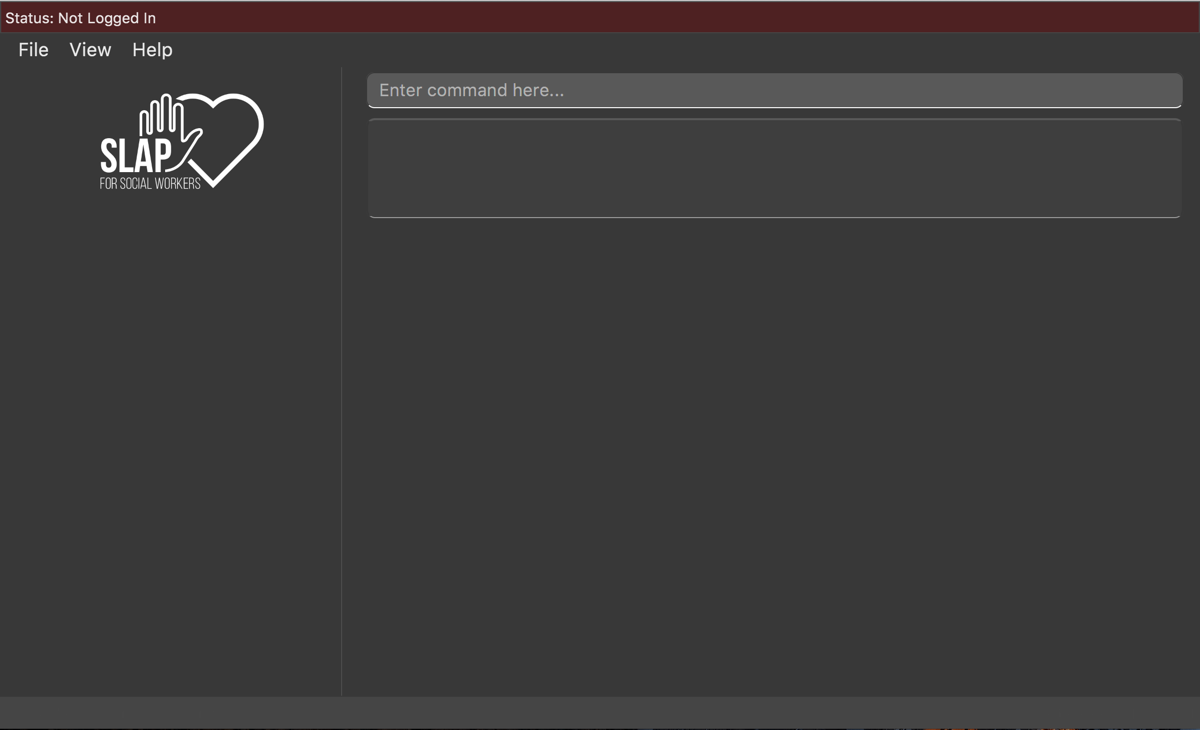
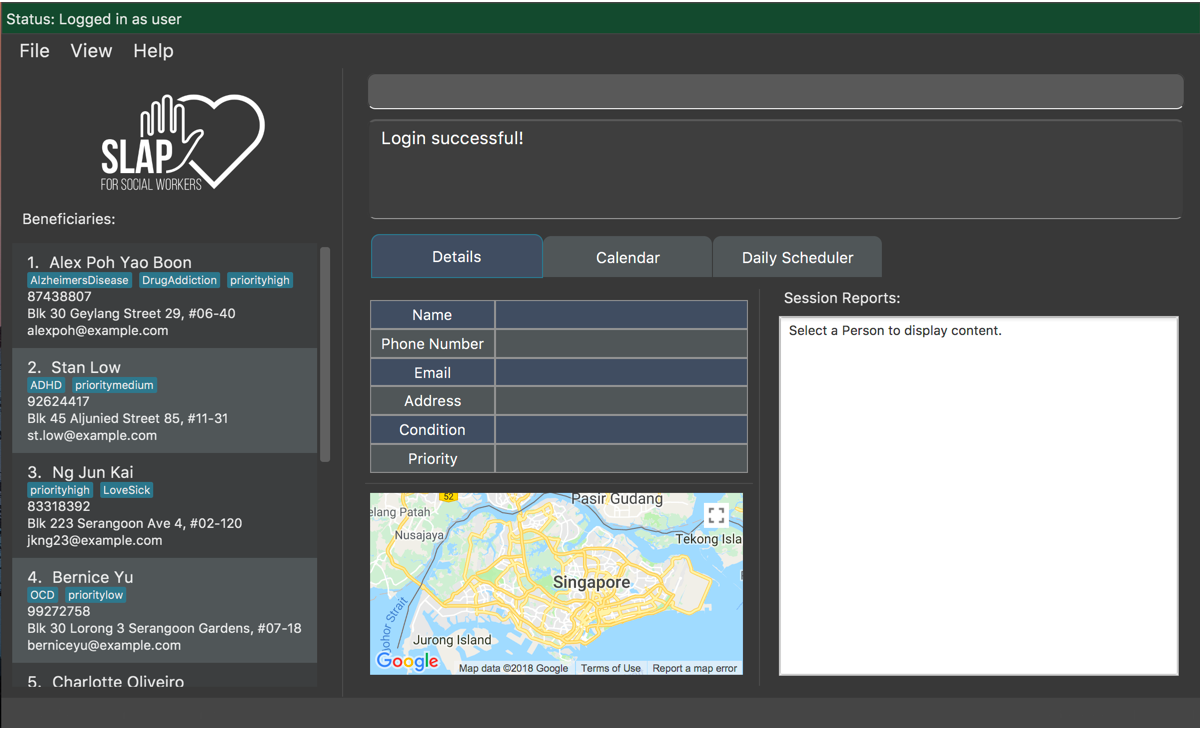
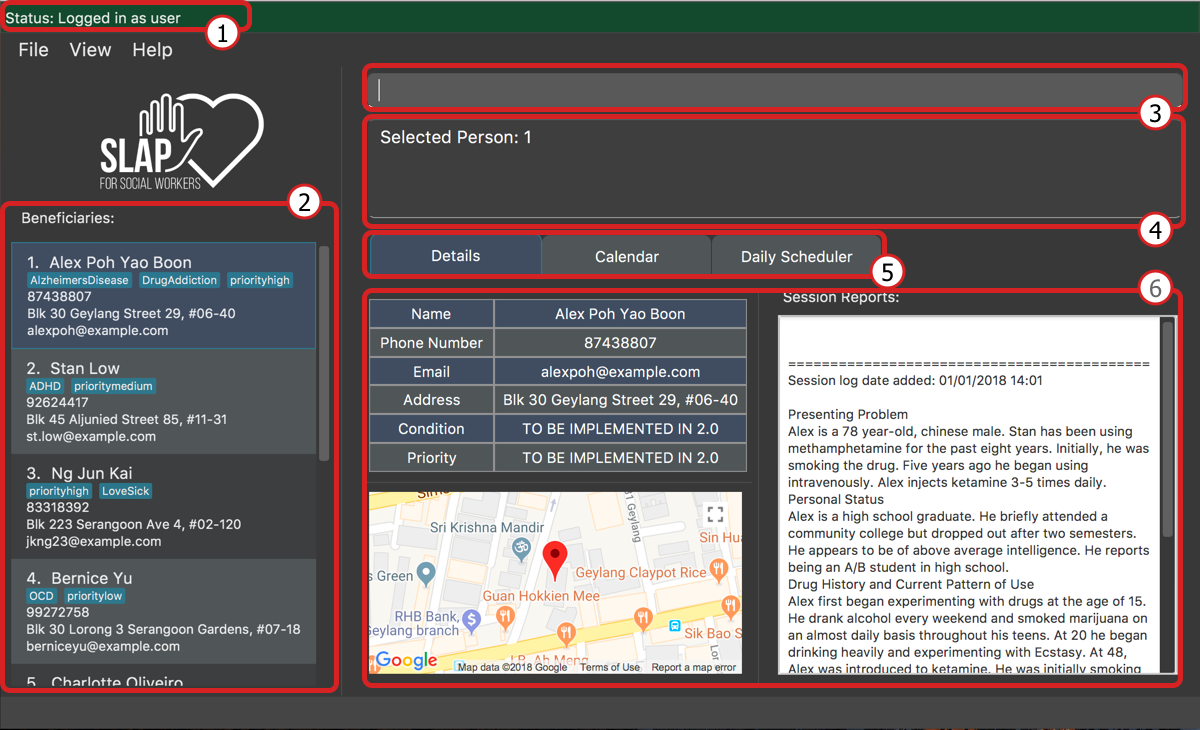
Sections of the Main User Interface:
-
Login Status Bar:
Displays username and indicates if user is logged in. -
Beneficiary List Panel:
Displays all beneficiaries existing in the program. -
Command Box:
Takes in the input by the user. -
Command Box Notification:
Notifies the command feedback to the user. -
Features Tab:
Indicates current feature being viewed scheduled in the program. -
Features Panel:
Executingswitch FEATUREand/or clicking on respective tab onFeatures Tabwill trigger this region to display the respective feature panel.
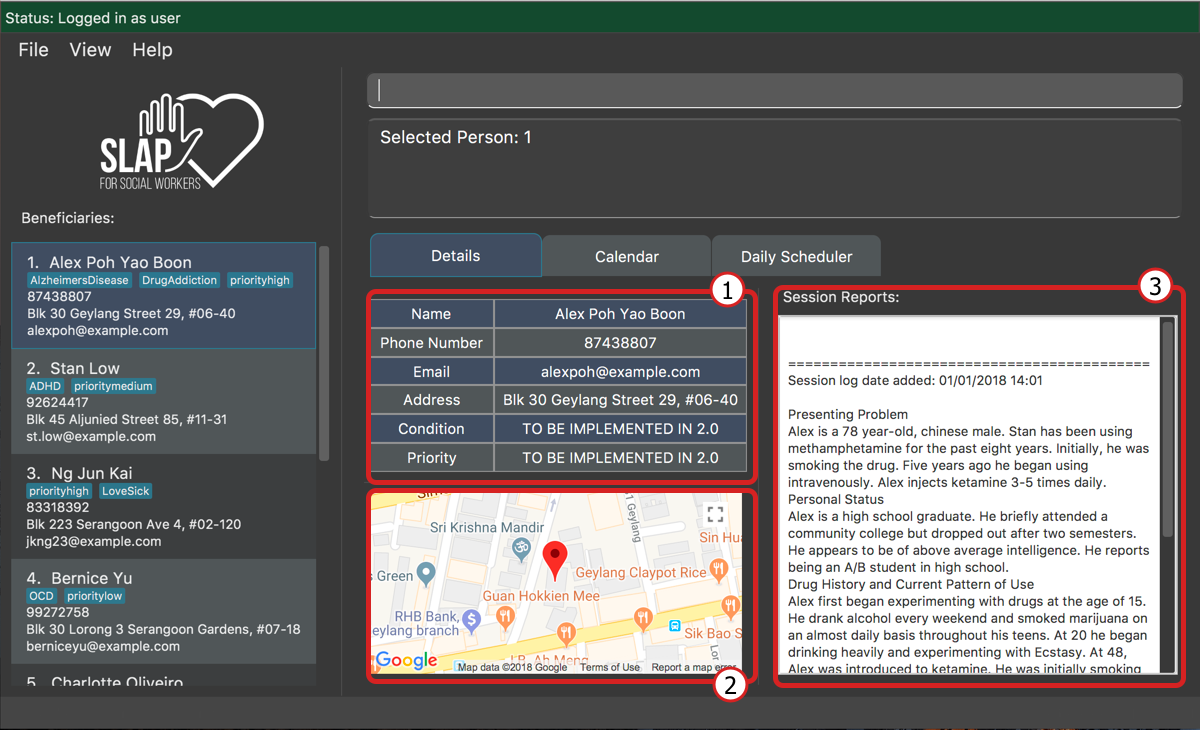
Sections of the Person Details Feature:
-
Table of Particulars:
Displays the particulars of the selected beneficiary. -
Address Location Panel:
Marks and displays the address of the beneficiary on a map component. -
Session Reports Panel:
Displays the existing session logs of the selected beneficiary.
Sections of the Calendar Feature:
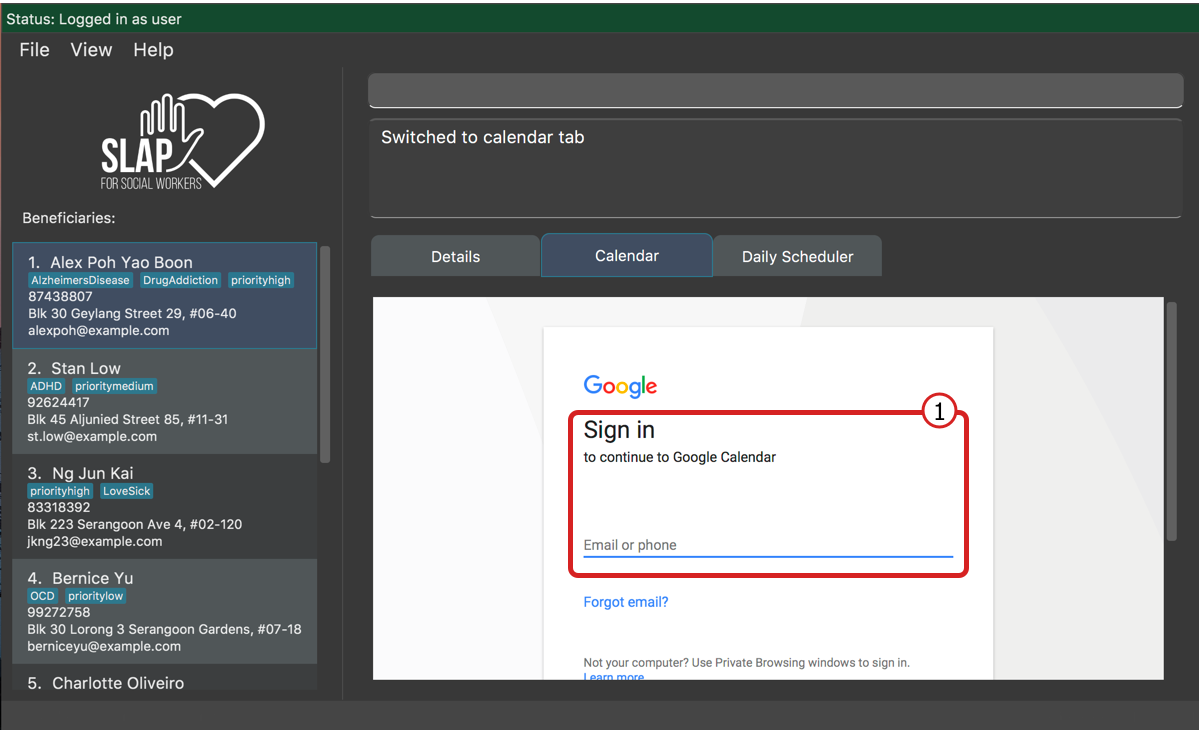
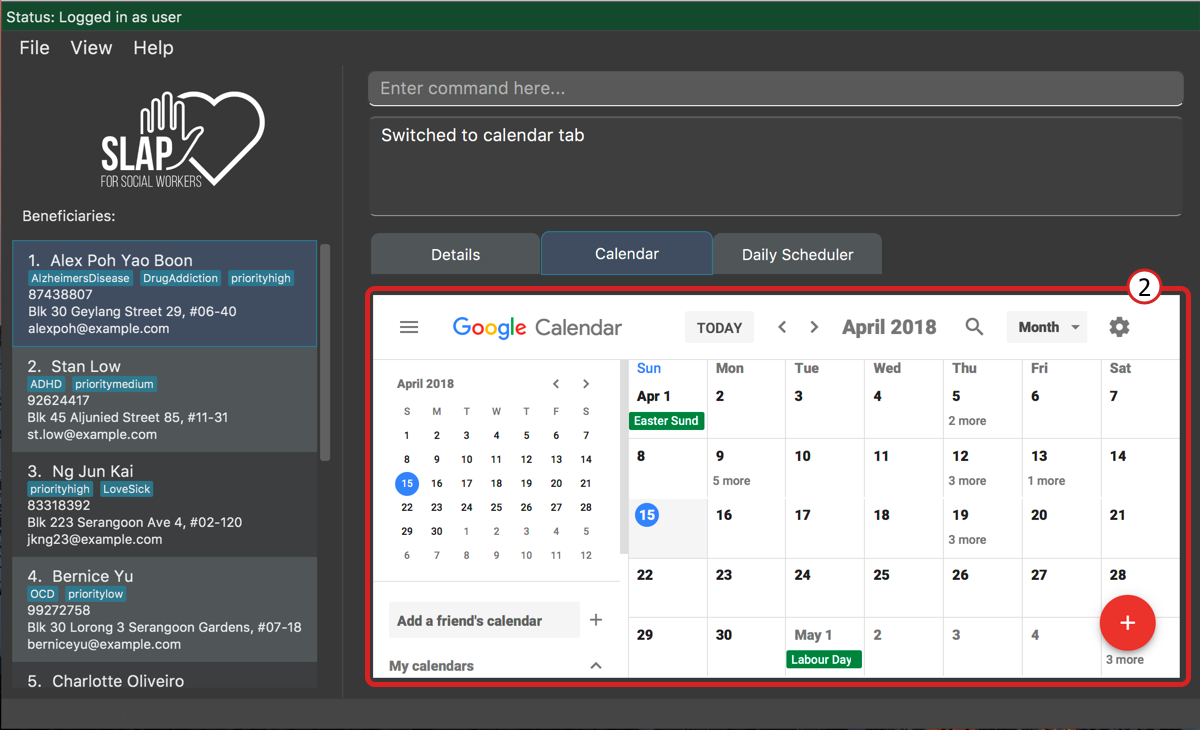
-
Log in for Display of Calendar:
Requires user to log in to Google Calendar account within the app to display the calendar. Note that this log in is separate from the permissions request that authorises SLAP to run Calendar functions. (For more information check outCalendar Toolssection) -
Display of Calendar:
After logging in, the user will be able to see the calendar paired with SLAP.
Sections of the Daily Scheduler Feature:
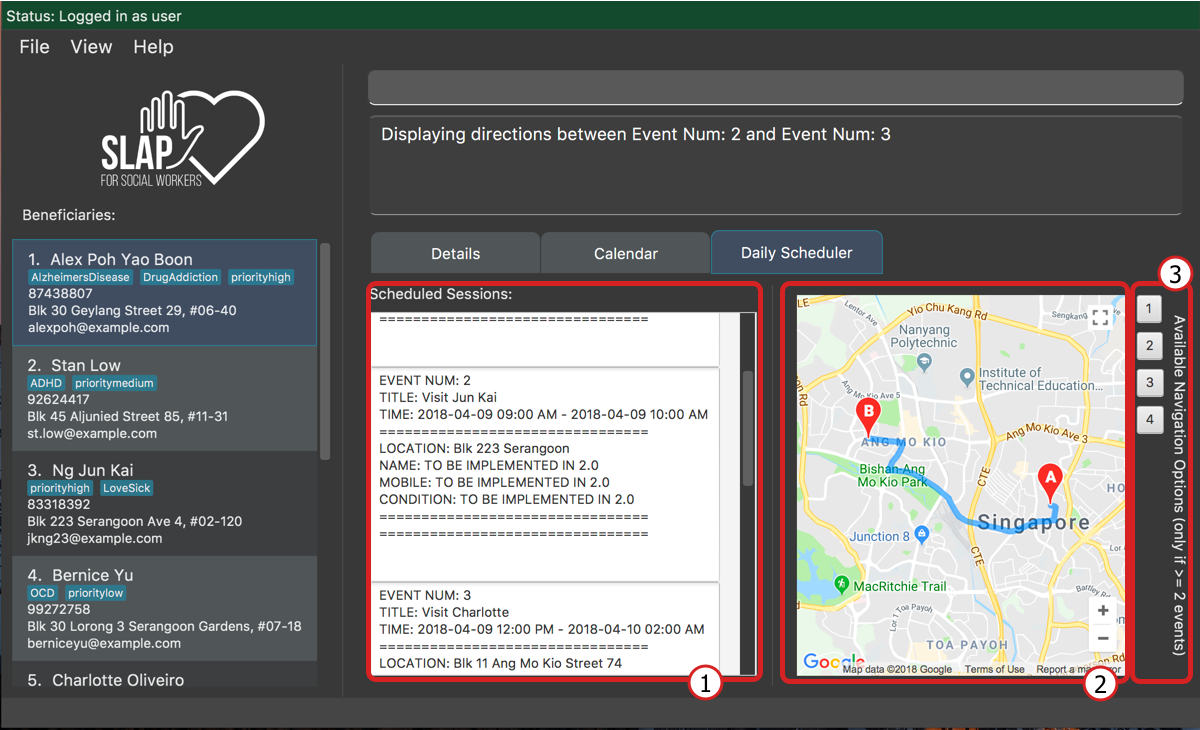
-
Scheduled Sessions List Panel:
Displays the scheduled events here after callingshow-schedule d/DATE. -
Direction Between Events Map Panel:
Displays a suggested navigation route between events after callingnavigate INDEXwhere, for examplenavigate 1will display the direction between events number 1 and 2 of the day. -
Navigation Options Indicator:
Displays a number of buttons at the side of map to indicate journeys available to navigate. This will correspond to the valid indexes fornavigate INDEX.
Application Navigation
Switching between feature interfaces : switch
|
All |
Examples:
-
switch details
Switches todetailstab and displays contents -
switch calendar
Switches tocalendartab and displays contents -
switch scheduler
Switches toschedulertab and displays contents
Map Tools
Navigate between scheduled events : navigate
Displays the directions between planned locations on the daily scheduler map.
Format: navigate INDEX
|
Must be on |
| Number of buttons on the right of the scheduler panel map indicates how many navigation options are available. |
Examples:
-
switch scheduler
Switches tocalendartab and displays contents -
show-schedule d/5 May
Retrieves events on the 5th of May. -
navigate 1
Displays directions between the first and the second event of the day.
Contributions to the Developer Guide
Given below are sections I contributed to the Developer Guide. They showcase my ability to write technical documentation and the technical depth of my contributions to the project. |
Map Components
Current Implementation
The map view feature is implemented using GMapsFX, an imported library created by rterp. The library contains basic integration of Google Maps APIs into FMXL files.
The feature supports the display and retrieval of addresses as a marker and of directions on the various Google Map components implemented across the application. There are two main instances of Map: in Details Feature and Daily Scheduler Feature.
Each map is loaded a separately as independent MapPanels with their own MapManager, located in logic folder managing them. Switching out of feature will unload the respective MapPanel, required due to limitations of API used.
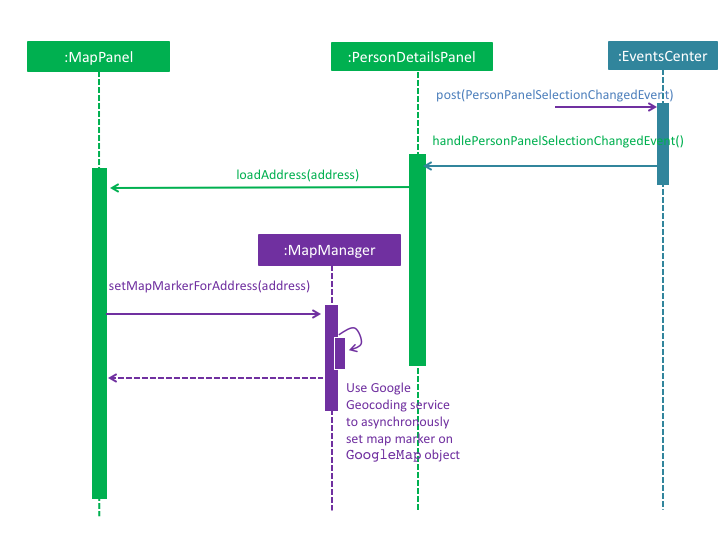
The above sequence diagram represents the process of loading and setting a new marker on the map panel within Person Details panel. The feature can create markers to pin beneficiary location on map and also display suggested navigation routes between event locations.
As the Map Panel is a UI component, adopting the event-driven approach, we have made it such that the parent of the Map Panel
listens for the PersonPanelSelectionChangeEvent to signal the child Map Panel to load a load/set a new address on the map.
The Google geocoding service helps to translate the string address into a proper Geocode request for Google to process.
Design Considerations
Aspect: GUI
-
Alternative 1 (current choice):
GMapsFX-
Pros: Intuitive to use. Collated various Google Map APIs to be compatible with JavaFX. Sufficient for displaying and controlling simple usage of Google Maps. Once loaded, the map does not require further initialisation calls to load different address.
-
Cons: Documentation is at times unclear. Several methods are designed as lambda expressions but not specified in documentation. Limited flexibility. Can only load one map at a time.
-
-
Alternative 2: Use WebView component and load HTML file containing simple embedded Google Maps
-
Pros: Easy to implement.
-
Cons: Requires re-loading for each call to view different person. Lacking in control. Application cannot communicate efficiently to loaded pages. Easy to break. Inflexible.
-
-
Alternative 3: Integrate Google Maps APIs directly
-
Pros: Well-documented. Full-access to Google Maps APIs allows for great flexibility.
-
Cons: Too complicated. Not built/compatible for JavaFX. Cannot load more than one map at a time.
-
Aspect: Logic
-
Alternative 1 (current choice): Maintain a non-static
MapManagerinlogicto handle manipulation of Map.-
Pros: Cleaner code. Each
MapPanelmaintains their own logic controller. Avoids asynchronous event/callback errors. -
Cons: May have issues with retrieving correct data. Have to instantiate new
MapManagerfor every instance of Map.
-
-
Alternative 2: Use a static Map logic manager that is called only when required.
-
Pros: Not all map instances require a dedicated MapManager to handle requests.
-
Cons: GMapsFX has limitations in using static class, attributes has to be reset for each Map.
-
Daily Scheduler
Current Implementation
Feature includes a list of scheduled events for the specified day in addition to the aforementioned maps implemented using GMapsFX, an imported library created by rterp.
Daily Scheduler feature involves two separate sections,Events List Display and Navigation. The display portion focuses on retrieving events of the specified date whereas the navigation portion seeks to retrieve suggested routes between those events.
The Daily Scheduler feature will involve the UI component as while as the Model component, and makes use of OAuthManager to get required events.
The OAuthManager is only used in the parser of the navigate command to retrieve the relevant event pairs.
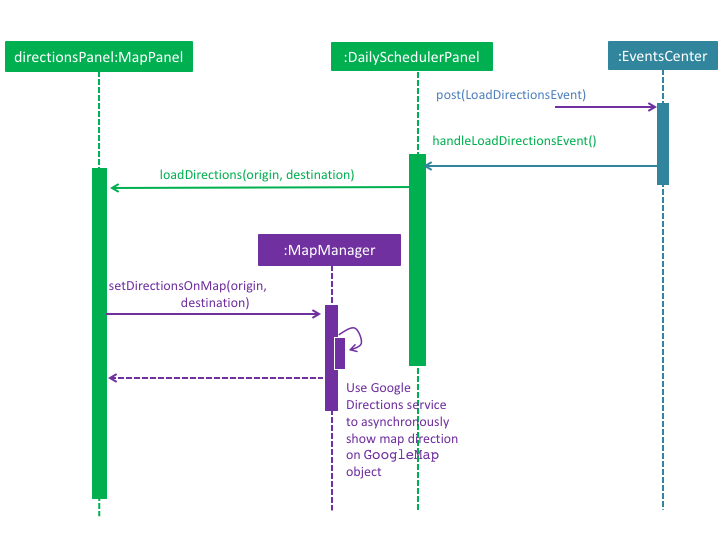
The above sequence diagram represents the process of loading and setting new direction markers on the map panel within Daily Scheduler panel.
This happens after the parsing and doing the execution of navigate command where LoadDirectionsEvent is posted as an event.
The DailySchedulerPanel, being the parent of the directionPanel, listens for the event and will update the map panel accordingly.
Use case: Switch Views of Features
MSS
-
User requests to change view (between calendar, details, daily schedule)
-
AddressBook updates main window to show specified feature
Use case ends.
Use case: View Daily Schedule
MSS
-
User requests to view daily schedule for specified date.
-
AddressBook retrieves calendar events for the specified date.
-
AddressBook retrieves addresses of specified contacts to be visited on specified day.
-
AddressBook requests for Google navigation between specified addresses.
-
AddressBook updates main window to show the listed events with suggested navigation.
-
User receives automatically generated daily schedule.
Use case ends.
Extensions
-
1a. Specified date is invalid
-
1a1. AddressBook notifies user of invalid date
Use case ends.
-
-
2a. Specified date has no calendar events.
-
2a1. AddressBook notifies user that there are no events.
Use case ends.
-
UI Features and Map Components
Switching features
-
Switching between feature tabs through Command Line Interface.
-
Prerequisites: Already logged in.
-
Test Case:
switch scheduler
Expected: UI switches scenes to display daily scheduler feature. Success message shown. -
Test Case (Switch to same feature) :
switch scheduler
Expected: No changes to UI. Success message shown. -
Test Case (Wrong name) :
switch detail
Expected: No changes to UI. Error message that feature target name is wrong. -
Test Case (Number used) :
switch 1
Expected: No changes to UI. Error message that feature target name is wrong.
-
Selecting persons will display updated UI
-
Updates to Map Panel.
-
Prerequisites: Already logged in and on
Detailsfeature. Person selected has a valid address. -
Test Case:
select 1
Expected: UI updates to display first indexed person’s address on the map. -
Test Case:
select 2
Expected: UI updates to display second indexed person’s address on the map. -
Prerequisites: Added a person with bad address such as
a/huhhuh. For this example, imagine person index is 10. -
Test Case (Select person with unrecognisable address) :
select 10
Expected: Map Panel updates to show that Google could not retrieve address.
-
-
Updates to Session Log Panel.
-
Prerequisites: Already logged in and on
Detailsfeature. -
Test Case:
select 1
Expected: UI updates to display first indexed person’s session log. -
Test Case:
select 2
Expected: UI updates to display second indexed person’s session log. -
Test Case:
add-log 1 log/TEST
Expected: Selects first indexed person and updates UI to display that person’s details including session log.
-
Show-schedule updates list of scheduled events shown
-
Updates to Events List Shown.
-
Prerequisites: Already logged in and on
Schedulerfeature. Date chosen, eg. 5 May and 6 May, already have at least 1 event scheduled. -
Test Case:
show-schedule d/5 May
Expected: UI updates to show information of events scheduled on 5 May. -
Test Case (Select different date with valid number of events):
show-schedule d/6 May
Expected: UI updates to show information of events scheduled on 6 May. -
Prerequisites: Date, eg. 7 May chosen has no scheduled events planned.
-
Test Case (Select different date with no events):
show-schedule d/7 May
Expected: UI updates to show prompt informing user to add events or select a date with events.
-
-
Updates to Navigation Option Indicators
-
Prerequisites: Date chosen, eg. 8 May have at 5 events scheduled.
-
Test Case:
show-schedule d/8 May
Expected: UI updates to display to show 4 buttons next to map panel. -
Prerequisites: Date chosen, eg. 9 May only have 1 event scheduled.
-
Test Case (Not enough events):
show-schedule d/9 May
Expected: UI updates to not display any buttons.
-
Navigate command updates Daily Scheduler Map Panel
-
Updates to Daily Scheduler Map Panel.
-
Prerequisites: Already called show-schedule for a date with sufficient events, i.e. 2 or more events.
-
Test Case:
navigate 1
Expected: UI refreshes to display directions between event 1 and 2. Message success will be shown.
-
UI updates on Log Out and Log In
-
Updates to Details Panel.
-
Prerequisites: Logged in, carried out a few commands and current view is details feature.
-
Test Case:
logout + login u/user p/pass
Expected: UI refreshes to not display any persons details.
-
-
Updates to Daily Scheduler Panel.
-
Prerequisites: Logged in, carried out a few commands and current view is daily scheduler feature.
-
Test Case:
logout + login u/user p/pass
Expected: UI refreshes to not display any events or directions or indicators.
-